Features Incident Journal
A built-in log to document ISP issues over time. Replaces spreadsheet-based tracking and feeds directly into complaint letters.
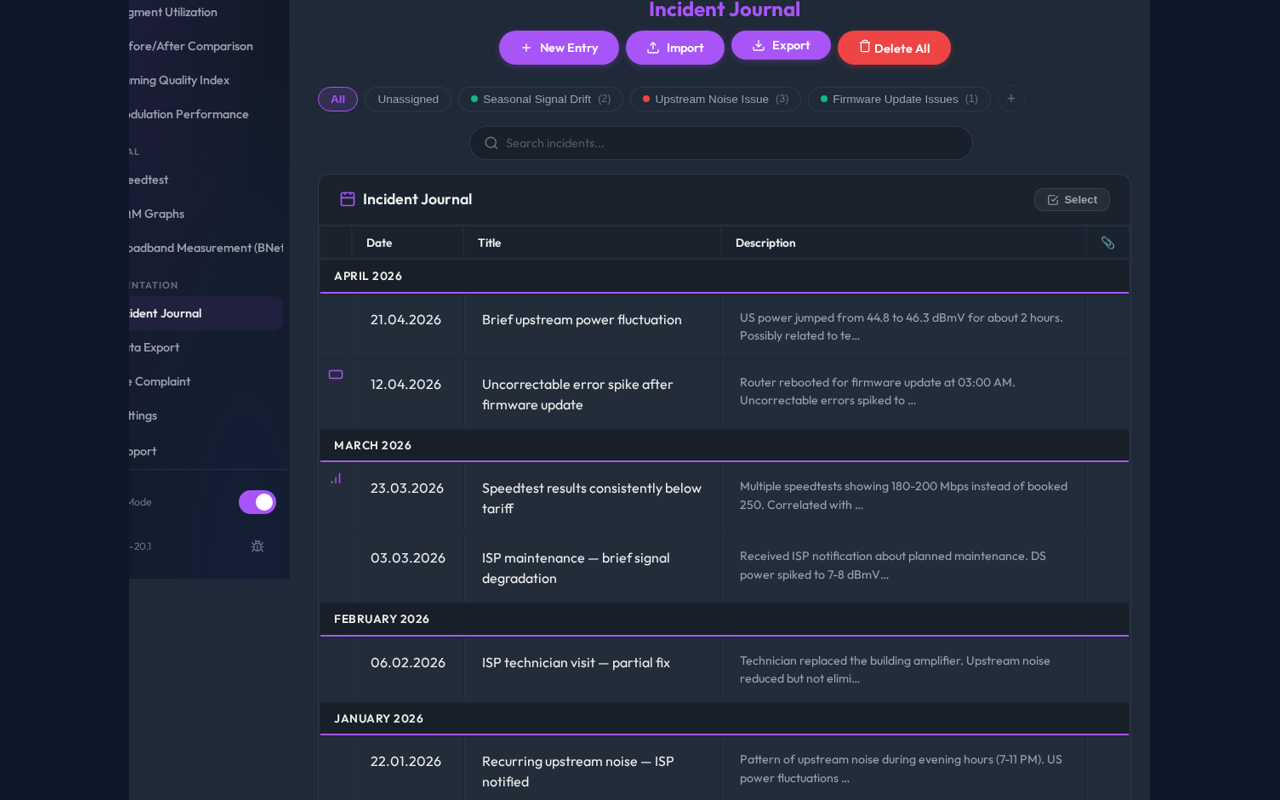
- Incident groups to organize entries under named containers (e.g., "Upstream Noise 2024")
- Export entries as CSV, JSON, or Markdown
- Import existing documentation from Excel (.xlsx) or CSV files
- Auto-detect icons based on entry keywords (phone, outage, technician, ...)
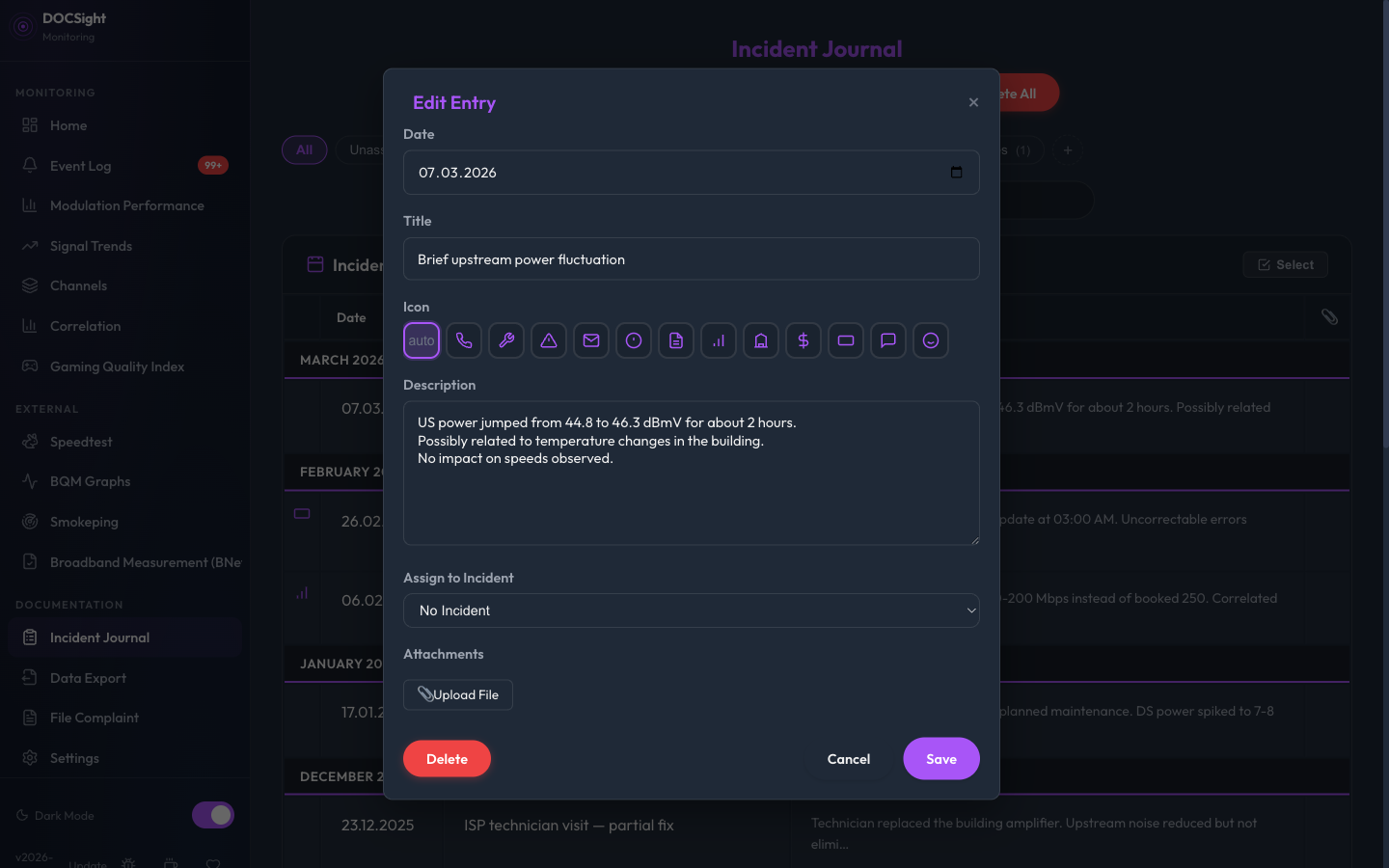
- Customizable icons via icon picker in the edit modal
- Full-text search with result highlighting
- Month/year grouping with sticky section headers
- Batch delete with double confirmation
- File attachments (screenshots, PDFs, up to 10 per entry)
- 4 languages (EN/DE/FR/ES)
- Go to Incident Journal in the sidebar (under Documentation)
- Click New Entry
- Fill in:
- Date: When the issue occurred
- Title: Brief description (e.g., "Complete outage during prime time")
- Description: Detailed account of what happened
- Icon: Auto-detected from title keywords, or pick manually
- Incident: Optionally assign to an incident group (see below)
- Save the entry
- Optionally attach screenshots or files (up to 10 attachments per entry, max 10 MB each)
DOCSight automatically assigns theme icons based on keywords in the entry title:
| Icon | Category | Example Keywords |
|---|---|---|
| Phone | Phone calls | Telefonat, Anruf, Hotline, Callcenter |
| Wrench | Technician visits | Techniker, Monteur, Reparatur, Vor Ort |
| Warning | Outages | Ausfall, Stoerung, Offline, Disconnect |
| Envelope | Written communication | E-Mail, Schreiben, Einschreiben, Fax |
| Alert | Complaints | Beschwerde, Reklamation, Widerspruch |
| Document | Contract matters | Vertrag, Kuendigung, Tarif, Wechsel |
| Chart | Measurements | Messung, Speedtest, Breitbandmessung |
| Building | Authorities | Bundesnetzagentur, BNetzA, Schlichtung |
| Dollar | Billing | Rechnung, Erstattung, Gutschrift, Minderung |
| Router | Hardware | Router, Modem, Fritz!Box, Geraetetausch |
| Speech | Documentation | Protokoll, Nachweis, Beweis, Screenshot |
| Scale | Legal | Anwalt, Klage, Gericht, Mahnung, Frist |
You can override the auto-detected icon by clicking any icon in the picker. Select auto to revert to automatic detection.
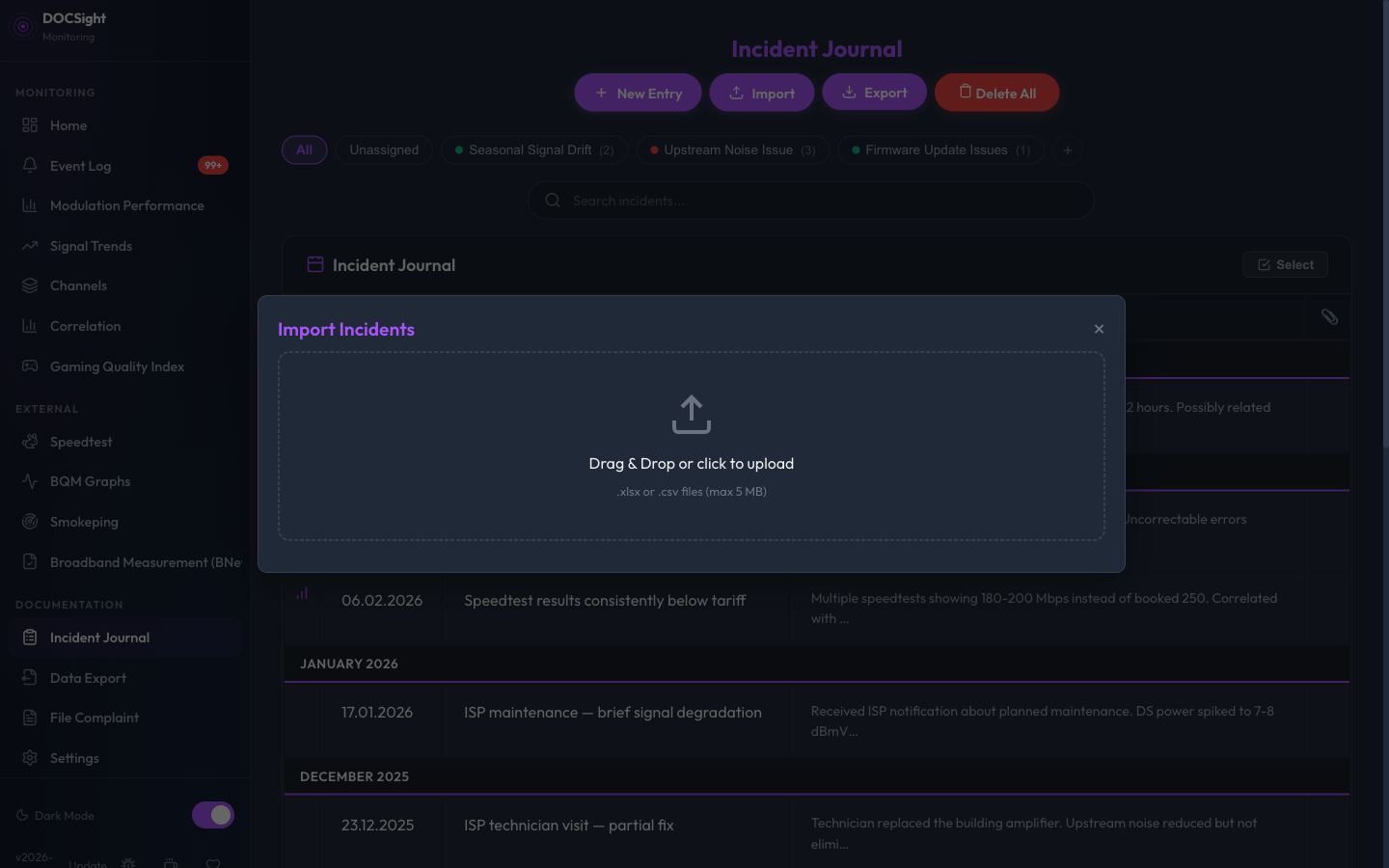
If you already have incident records in a spreadsheet, you can import them directly.
- Excel (.xlsx) -- including multi-sheet workbooks
- CSV -- auto-detects delimiter (semicolon, comma, tab) and encoding
- Click Import in the journal header
- Drag & drop your file or click to browse (max 5 MB)
- DOCSight auto-detects which columns contain the date, title, and description
- Review the preview table -- deselect any rows you don't want
- Duplicates (same date + title) are automatically marked and deselected
- Click Import Selected to confirm
- Date column: Detected by date patterns (DD.MM.YYYY, DD.MM., YYYY-MM-DD, ISO)
- Title column: Shorter text column (not the date)
- Description column: Longer text column
- Month headers: German month headers like "November 2023" in a column are recognized and used to fill in missing year information for DD.MM. dates
- Empty/header rows: Automatically skipped
Importing the same file again is safe. DOCSight checks for duplicates (matching date + title) and marks them in the preview. Already-existing entries are skipped during import.
The search bar filters entries by date, title, and description. Results are highlighted in the table. Type at least 2 characters to start searching. Press Escape to clear.
When sorted by date (default), entries are grouped under sticky month/year headers (e.g., "February 2026", "January 2026"). The headers stay visible while scrolling through a month's entries.
Click Delete All to remove all entries at once. This requires double confirmation:
- A confirmation dialog showing the number of entries
- Typing the word
DELETEin a prompt
This action is irreversible and also removes all attachments.
Incident groups let you organize journal entries under named containers. Useful for users with months of monitoring who need to separate distinct issues (e.g., "Upstream Noise 2024" vs. "Firmware Problems 2025").
A pill-based filter bar appears above the journal table:
- All: Show all entries
- Unassigned: Show entries not assigned to any incident
- Incident pills: One per incident, with status dot (red=open, green=resolved, amber=escalated), name, and entry count
- +: Create a new incident
Hover over an incident pill to reveal the edit icon.
When an incident is selected, a summary panel appears showing:
- Name, status badge, date range, entry count
- Description preview (up to 200 characters)
- Edit button to open the incident modal
- Click + in the filter bar
- Fill in:
- Name: e.g., "Upstream Noise Issue"
- Status: Open, Resolved, or Escalated
- Start/End Date: When the incident began/was resolved
- Icon: Optional
- Description: Detailed context
- Save
- When creating or editing an entry, use the Incident dropdown to assign it to a group
- When creating a new entry while an incident is selected, the dropdown auto-selects that incident
- Deleting an incident does not delete its entries -- they become unassigned
Click Export in the journal header to download your entries. Three formats are available:
- CSV -- for spreadsheets and further analysis
- JSON -- for programmatic use or backup
- Markdown -- for pasting into documents, wikis, or LLMs
The export includes all entries matching the current filter (incident selection and search query). Each entry contains its date, title, description, icon, and incident assignment.
- All entries and incidents are stored permanently in the SQLite database (not subject to history cleanup)
- Attachments are stored as BLOBs in the database, no filesystem dependency
- The
iconfield stores manual icon overrides (auto-detected icons are not stored) - The journal feeds directly into complaint letters and PDF reports
| Method | Path | Description |
|---|---|---|
| GET | /api/journal?search=query&incident_id=N |
List entries (incident_id: omit=all, 0=unassigned, N=specific) |
| POST | /api/journal |
Create new entry |
| PUT | /api/journal/<id> |
Update entry (including icon and incident_id) |
| DELETE | /api/journal/<id> |
Delete single entry |
| POST | /api/journal/import/preview |
Upload file, get parsed preview |
| POST | /api/journal/import/confirm |
Bulk-import selected rows |
| DELETE | /api/journal/batch |
Batch delete (by IDs or all) |
| GET | /api/journal/export?format=csv|json|markdown |
Export entries in the specified format |
| GET | /api/incidents |
List incident containers with entry counts |
| POST | /api/incidents |
Create incident container |
| PUT | /api/incidents/<id> |
Update incident |
| DELETE | /api/incidents/<id> |
Delete incident (entries become unassigned) |
| POST | /api/incidents/<id>/assign |
Assign entries to incident |
See the API Reference for full details.