
This repo contains two themes using Woz-U official colors. One light theme and one dark theme are both contained in the themes folder. To install the theme using Visual Studio Code click install.
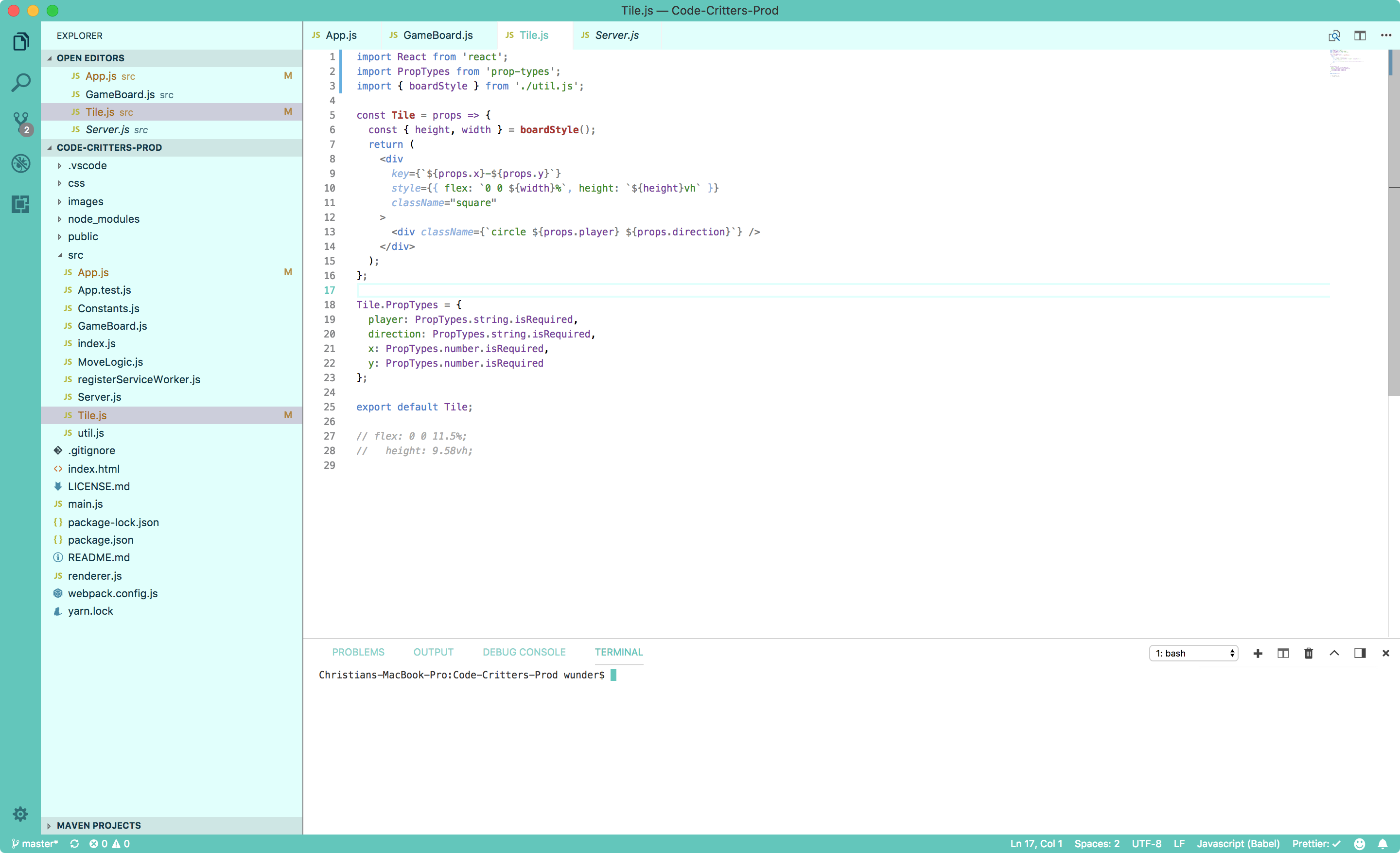
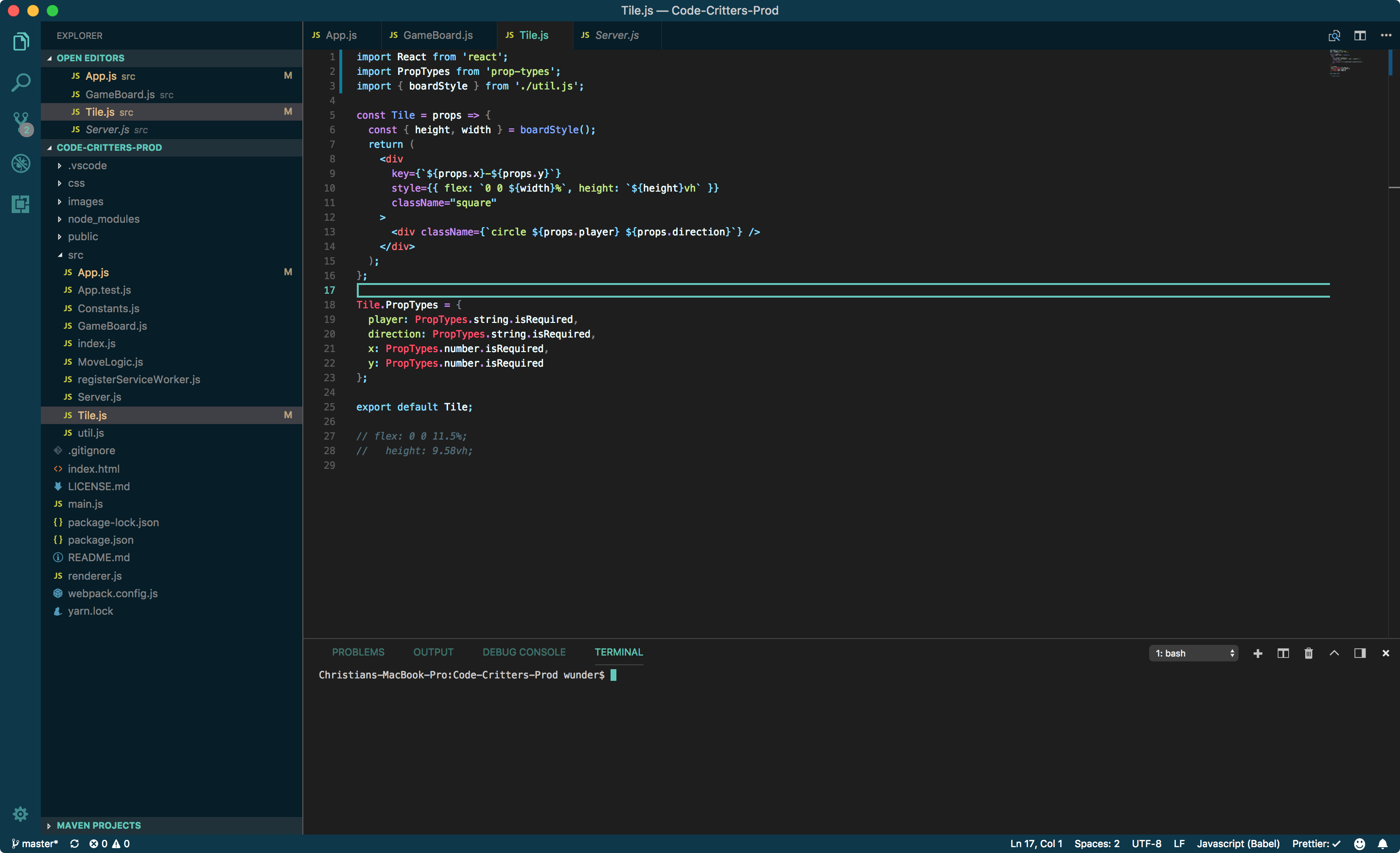
If you would like to help make these themes better you can follow the instructions below to install this theme through github.
To install the theme extension first open the terminal and navigate to <user home>/.vscode/extensions. Extensions are installed in your extensions folders. Depending on your platform, the global location is in the following folders:
- Windows:
%USERPROFILE%\.vscode\extensions - Mac:
~/.vscode/extensions - Linux:
~/.vscode/extensions
Once inside this location, you can then clone this repo directly to your extensions folder using the command directly below.
git clone https://github.com/codercamps/vs-code-themes.git
Once the repo has been cloned if you have an instance of VS Code already open use the shortcut Ctrl + Shift + P (Mac: Command + Shift + P) to open the command palette and type >reload followed by enter to reload that instance of VS Code.
Once VS Code has reopened use the same shortcut Ctrl + Shift + P (Mac: Command + Shift + P) and this time enter theme and then select Preferences: Color Theme. Once the drop-down list appears, use your keyboard arrows to navigate up and down the list and then choose which theme you would like.
Read the file named vsc-extension-quickstart.md for more info on making changes to the themes. Keep in mind a few things...
- If you directly edit the copy of the theme inside your
.vscode\extensionfolder the next time you reload vs code the theme will update. - Clone a new copy of the repo in a different location for editing the themes, then run the app with
F5to launch a sandboxed instance of vs code which you can useCtrl + Rto reload. - For color theme reference visit the VS Code Docs
Happy Coding!