Add Invisible mode for your Uplay client.
Invisible mode is now available officially within the Ubisoft Connect (formely Uplay). So this repository will be archived and discontinued. Thanks everyone for using this and sorry for not responding to the opened issues.
- Invisibility Appear as offline to your friends but still be able to access in-game online services.
Disabled Features
- Friend List (including an invitation to the game)
- News Section, Store
The application will block the connection of upc.exe which transmit your online status to your friends. Your game connection will not be affected as this only blocks Uplay Client connection.
Extracted contents will contains some files and folders including upcinvisible.exe file.
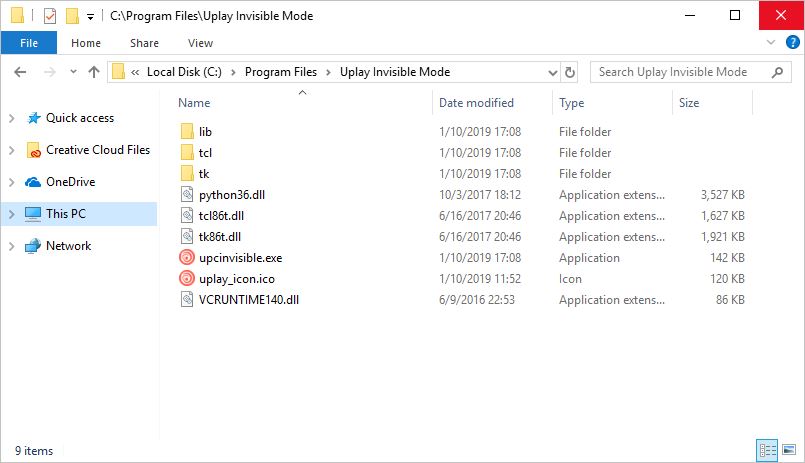
There are a lot of files extracted. So it is recommended to place the files somewhere and create a shortcut for upcinvisible.exe from there
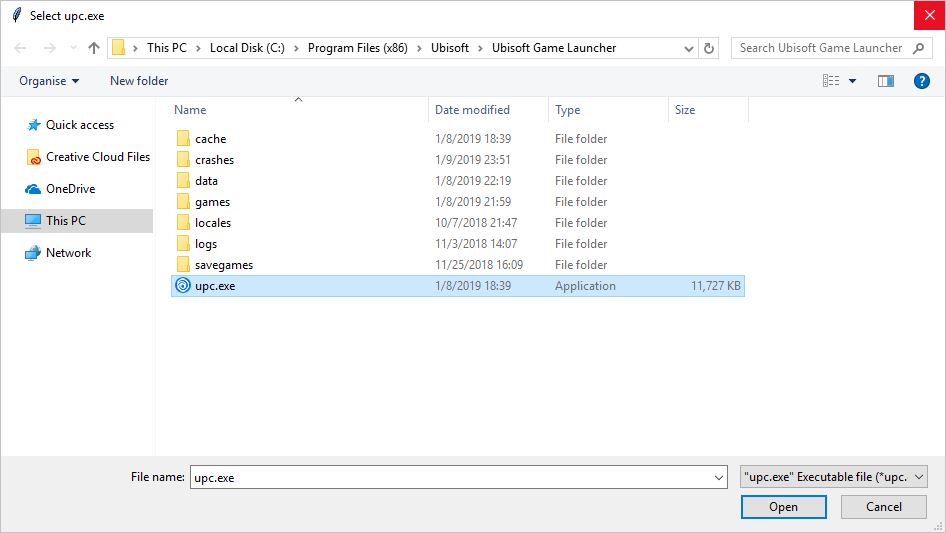
The application will prompt you to select upc.exe from your Uplay installation folder (Default path: C:\Program Files (x86)\Ubisoft\Ubisoft Game Launcher\upc.exe) and Windows Firewall Outbound rule "Uplay Invisible Mode" will be created.
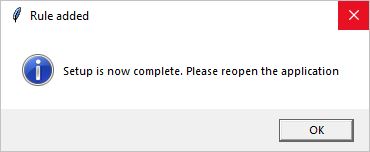
The application will close and you are now ready to use.
You will see like this in the application do not enable it yet.
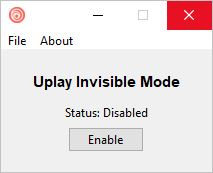
In this phase you will still appear online to your friends
Simply just click Play button at your game. Do not enable until the Synchronization your save games with the cloud dialog disappear after that you can click on Enable.
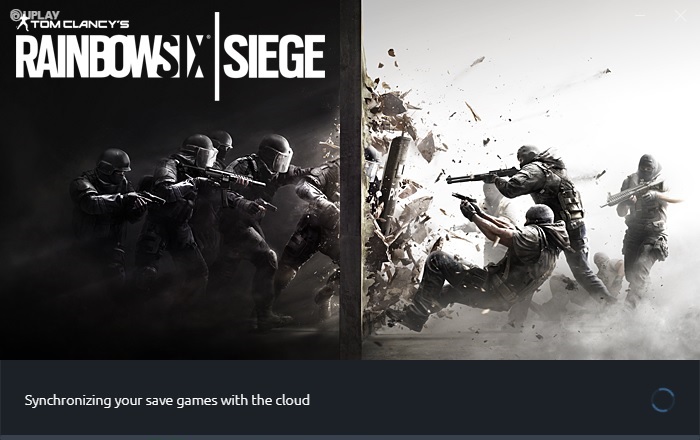
This will not instantly offline your Uplay status. It may take about a minute or half for you to completely appear offline to your friends.
You can check if it working or not by noticing Error appear at the bottom, Friend list appear as Connecting... and Store inaccessible.
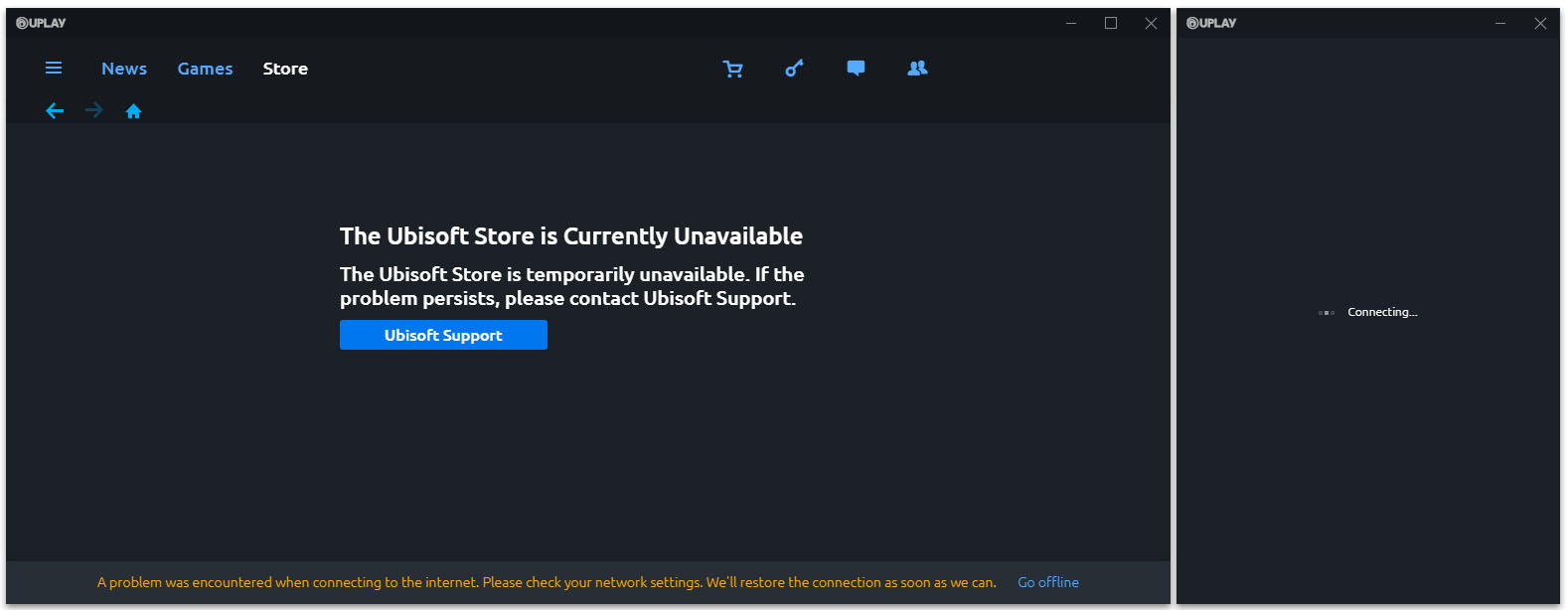
If all this applies you are now completely invisible. Enjoy!
When you have finished your game. Quit the game and click on Disable button (Like when enabling you will not immediately online). After your Uplay client has established the connection with the server. You can now sync your progress with the cloud.
- Python
3.6.3- tkinter
8.6 pyinstaller3.4- cx_Freeze
5.0.2
- tkinter
Install required library
pip install cx_Freeze
upcinvisible.py- Application's main fileuplay_icon.ico- Application's icon file
Build the application using cx_Freeze
py setup.py build
You will find your files at \build\exe.win-amd64-3.6 and don't forget to put uplay_icon.ico along with the .exe file.