An interactive drawing application that uses a Wii Nunchuck as an input device, combining Arduino hardware with Processing software to create a unique digital art experience.
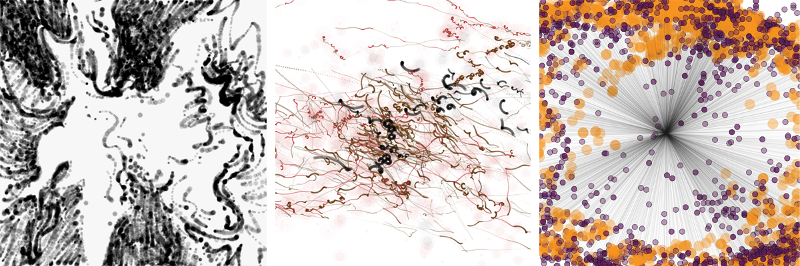
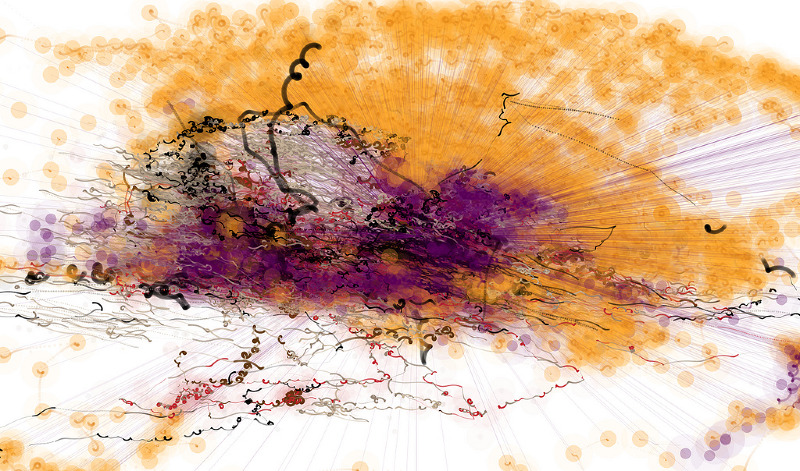
WiiDrawing transforms the Nintendo Wii Nunchuck into a digital paintbrush, allowing users to create artwork through intuitive motion controls. The project bridges physical computing and creative coding, demonstrating how everyday gaming peripherals can be repurposed for artistic expression.
- Black & White - Classic monochrome drawing
- Earth Tones - Natural, warm color palette
- Color - Full spectrum color drawing
Switch between brush modes using keyboard controls.
Three physical buttons provide essential functions:
- Info Screen - Display instructions and help
- New Drawing - Clear canvas and start fresh
- Save - Capture and upload artwork directly to Tumblr
The Wii Nunchuck's accelerometer and joystick control brush position and movement, creating an intuitive drawing experience.
- Hardware: Arduino, Wii Nunchuck controller
- Software: Processing (Java-based creative coding framework)
- Communication: Serial connection between Arduino and Processing
- Integration: Tumblr API for saving and sharing artwork
WiiDrawing/
├── drawing/
│   ├── drawing.pde          # Main Processing sketch
│   ├── introscreen.png      # Welcome screen graphic
│   ├── data/                # Additional resources
│   └── [sample outputs]     # Example drawings created with the system
├── nunchuck/
│   └── nunchuck.ino         # Arduino firmware for Nunchuck interface
└── README.md
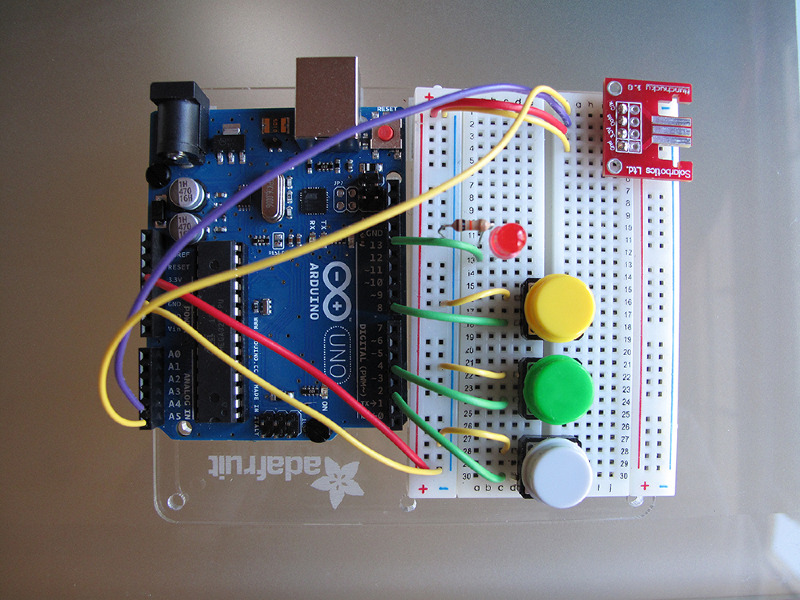
- Arduino board (Uno, Mega, or compatible)
- Wii Nunchuck controller
- Nunchuck adapter or breakout board
- 3 push buttons
- Breadboard and jumper wires
- USB cable for Arduino connection
- Arduino IDE (1.0 or later)
- Processing IDE (2.0 or later)
-
Clone the repository
git clone https://github.com/mkhandekar/WiiDrawing.git cd WiiDrawing -
Upload Arduino firmware
- Open
nunchuck/nunchuck.inoin Arduino IDE - Connect your Arduino board via USB
- Select correct board and port under Tools menu
- Click Upload
- Open
-
Wire the Nunchuck
- Connect Nunchuck to Arduino I2C pins (SDA/SCL)
- Wire the three buttons to digital pins (check code for pin assignments)
-
Run Processing sketch
- Open
drawing/drawing.pdein Processing IDE - Verify serial port settings match your Arduino
- Click Run
- Open
- Launch the Processing sketch - the intro screen will appear
- Press the Info button to view controls and instructions
- Use the Nunchuck to control brush position:
- Move the controller to draw
- Tilt for different brush effects
- Press keyboard keys to switch between brush color modes
- Press New Drawing button to clear the canvas
- Press Save button to export and upload to Tumblr

- Serial Communication: Arduino sends Nunchuck data via serial at 9600 baud
- Processing Integration: Real-time data parsing and rendering
- Button Debouncing: Implemented in Arduino code to prevent false triggers
- Canvas Resolution: Configurable in Processing sketch
- Tumblr API integration may require updated authentication (legacy code from 2012-2016)
- Image hosting URLs may need updating if Cargo Collective links expire
- Add pressure sensitivity using Nunchuck accelerometer data
- Implement undo/redo functionality
- Add more brush types and effects
- Modernize social media integration (Instagram, Twitter, etc.)
- Create standalone executable version
This is an archived creative project from 2012-2016. While no active development is planned, feel free to fork and adapt the code for your own projects!
Open source - feel free to use, modify, and share with attribution.
Meghana Khandekar
- Website: mkhandekar.com
- GitHub: @mkhandekar
Created as an exploration of physical computing and creative coding, combining Arduino, Processing, and gaming peripherals to create new forms of digital expression.
Last updated: 2016 | Archived project for reference and inspiration