


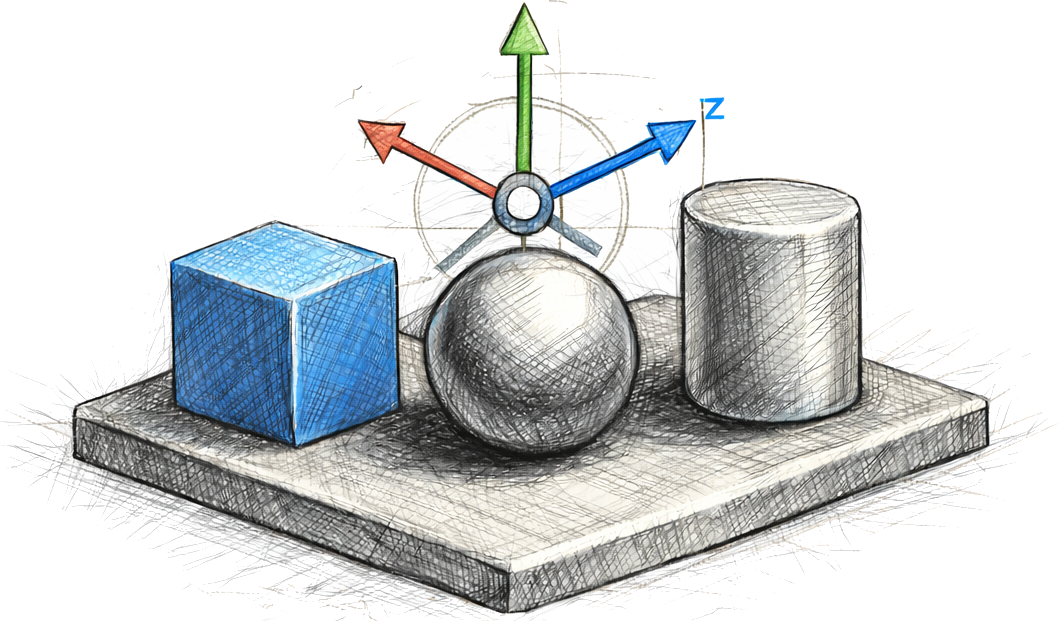
Lightweight, interactive scene editor for MuJoCo 3.x. Create or edit scenes in your browser to place shapes, import meshes, add robots, and edit elements interactively.
pip install mujoco-scene-editor

# Start a fresh, empty scene
mjcreate

# Load from MJCF XML or a blueprint JSON
mjedit path/to/scene.xmlInstall the package on PyPi with
pip install mujoco-scene-editorThis installs necessary dependencies and exposes console scripts.
The following entry points are available and they are also accessible as scene-editor subcommands:
mjcreate: Create an empty scene (opens the web browser)mjedit: Edit an existing scene (opens the web browser)mjprompt: Generate a scene from a prompt and save it as a MuJoCo XML
From a local checkout:
pip install -e .
# or with dev tools
pip install -e '.[dev]'
To run with uv, use
# Run the installed console script via uv
uv run scene-editor --help
uv run scene-editor new
When the server starts, it prints the URL and opens your browser. Quit with Ctrl+C or the "Quit server" button.
Use the provided chemistry lab MJCF as a starting point:
# With pip-installed package
mjedit examples/prompt/scene_chemistry_lab.xml

# With uv (no install)
uv run --with mujoco-scene-editor mjedit examples/prompt/scene_chemistry_lab.xml
Then:
- Use "Add Box/Sphere/Cylinder" to place primitive geoms.
- Use "Add Asset" to insert a local mesh from your file system.
- Drag the gizmo to change pose; use “Export” to write MJCF/JSON.
Robot models are detected using a heuristic. See the section below on how to configure the editor to use different robot models.
You can conveniently generate a MuJoCo scene from a natural-language prompt using OpenAI or OpenRouter.
You can either export your keys in the shell or place them in a .env file in the working directory (or any parent directory). The CLI loads .env automatically on startup:
cp .env.example .env
# Then edit `.env` and set OPENAI_API_KEY=... and/or OPENROUTER_API_KEY=...
Exported environment variables take precedence over values in .env.
# Set this to your API key
export OPENAI_API_KEY=...
# Generate a scene from a prompt string
mjprompt "A detailed kitchen."OpenRouter allows you to use various models beyond OpenAI, including many free models.
# Set this to your OpenRouter API key
export OPENROUTER_API_KEY=...

# Generate a scene using a specific model via OpenRouter
mjprompt --provider openrouter --model google/gemini-flash-1.5:free "A cozy living room with a sofa and coffee table."

# Verified working example with GPT-5 Codex via OpenRouter
mjprompt --provider openrouter --model openai/gpt-5-codex "Output ONLY a valid MuJoCo XML document with root tag <mujoco> for a red cube on a gray floor."
If both OPENAI_API_KEY and OPENROUTER_API_KEY are set, the editor defaults to OpenAI unless --provider openrouter is specified. If only OPENROUTER_API_KEY is set, it will automatically fallback to OpenRouter.
Tested OpenRouter models include openrouter/free, openai/gpt-5-codex, qwen/qwen3.6-plus:free, nvidia/nemotron-3-super-120b-a12b:free, openai/gpt-oss-120b:free, and openai/gpt-oss-20b:free. Availability may still vary with your OpenRouter account and privacy settings.
- If a model returns
404 Not Found, check your OpenRouter privacy/data policy settings and confirm that the model is enabled for your account. - Some free models may occasionally return non-MuJoCo XML or malformed output; retrying with a stricter prompt or another tested model such as
openai/gpt-5-codexusually helps. - If generation fails entirely, verify that
OPENROUTER_API_KEYis set correctly in your shell or.envfile.
To quickly validate your setup, this tested command runs the OpenRouter integration checks:
set -a && . ./.env && set +a
PYTHONPATH=src uv run pytest -q examples/test_openrouter.py -s
Loading a generated scene might not work out of the box in all cases. Generated scenes can have inconsistencies in geometry, but can be easily edited.
Below are some generated example scenes. More examples are available in the examples/prompt folder.
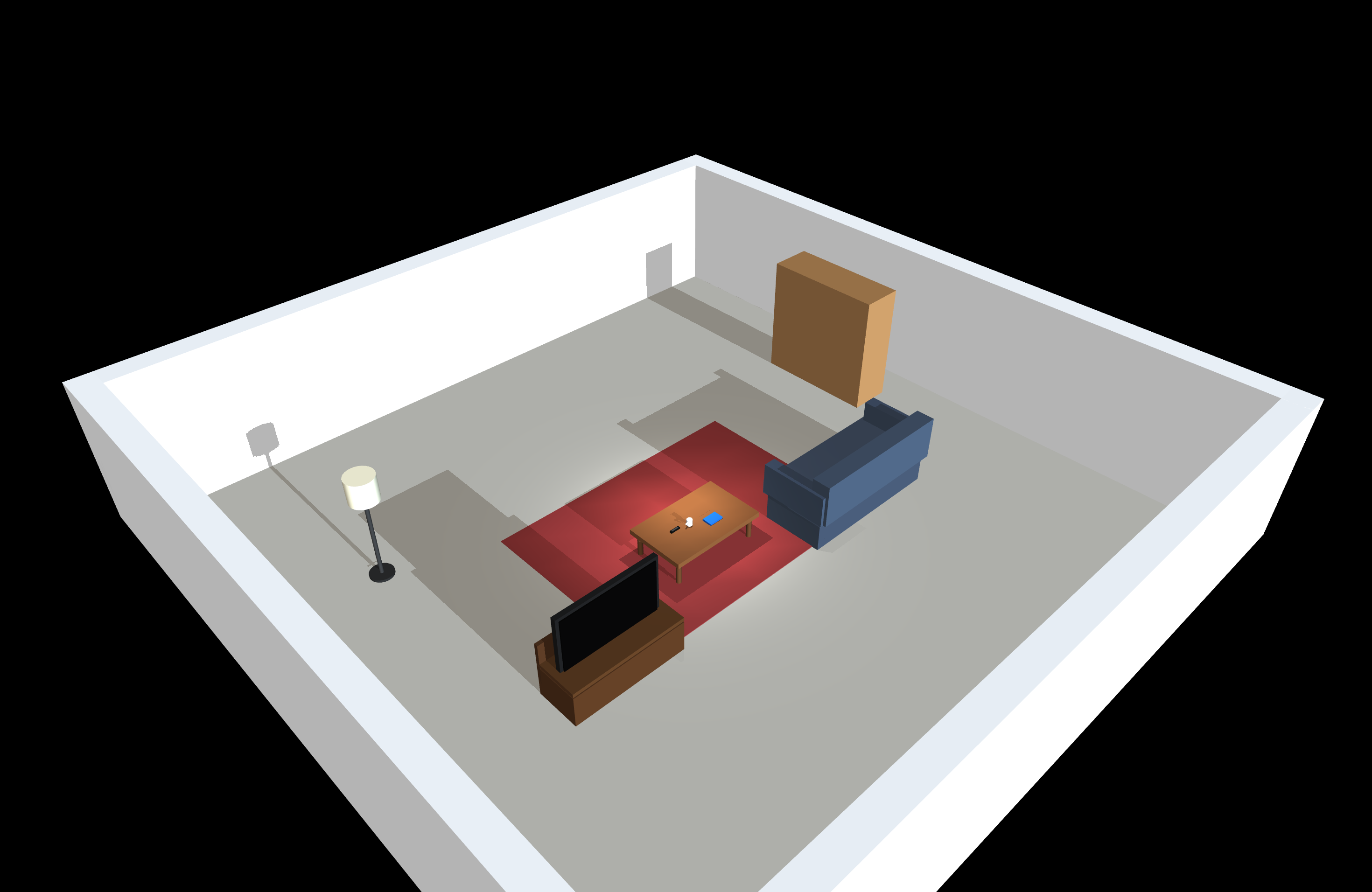
Living Room |
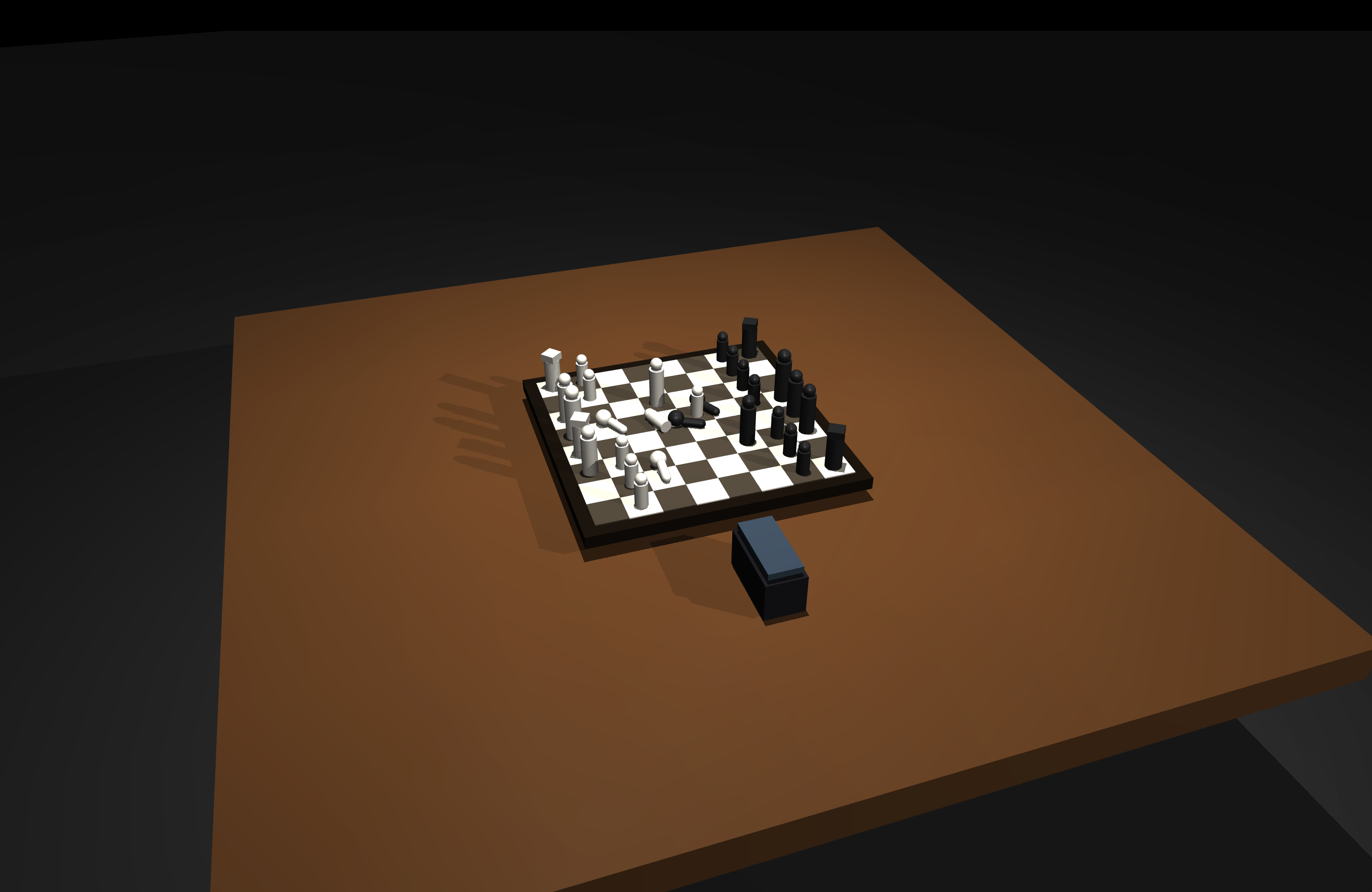
Chess Table |
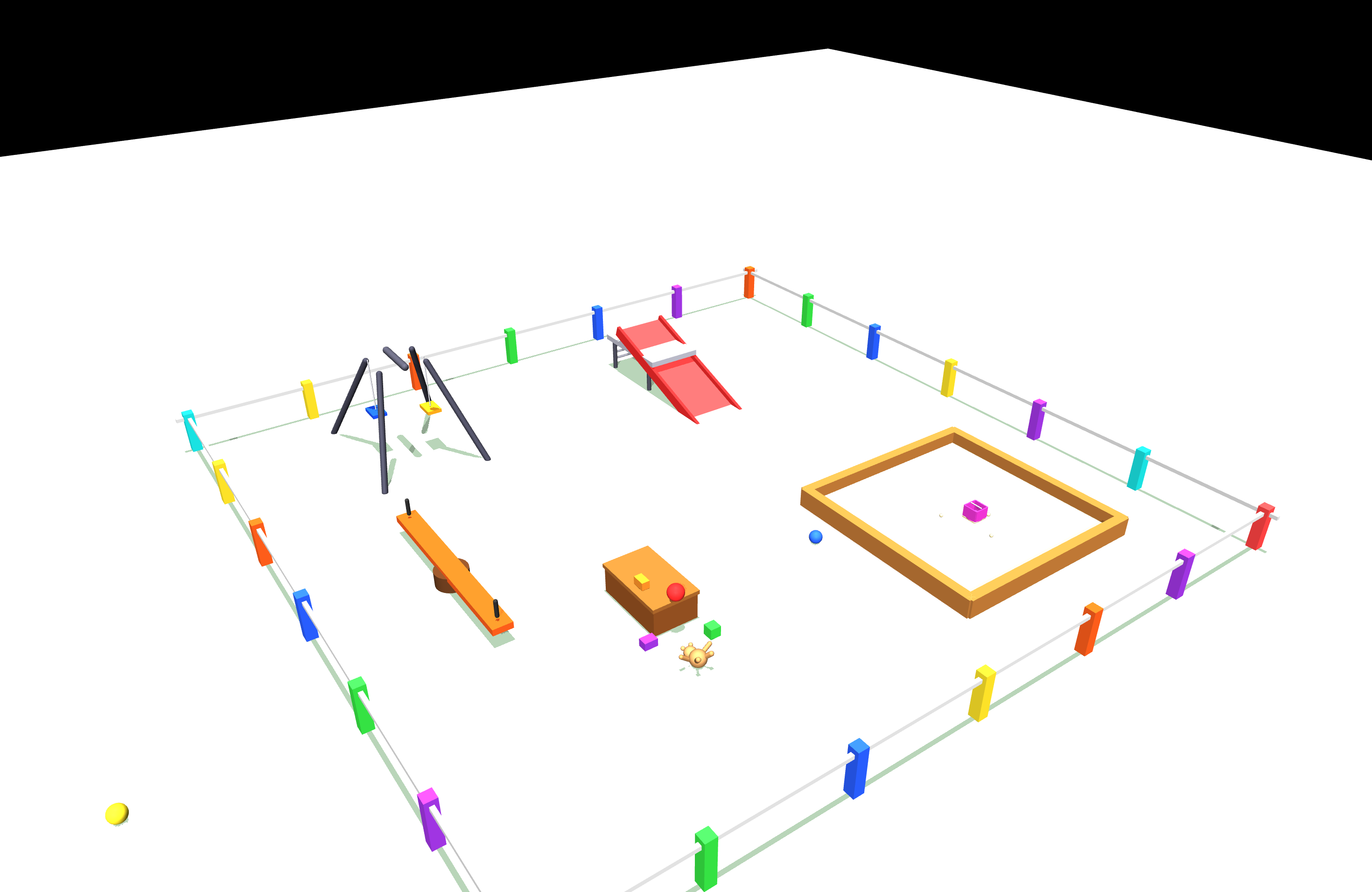
Playground |
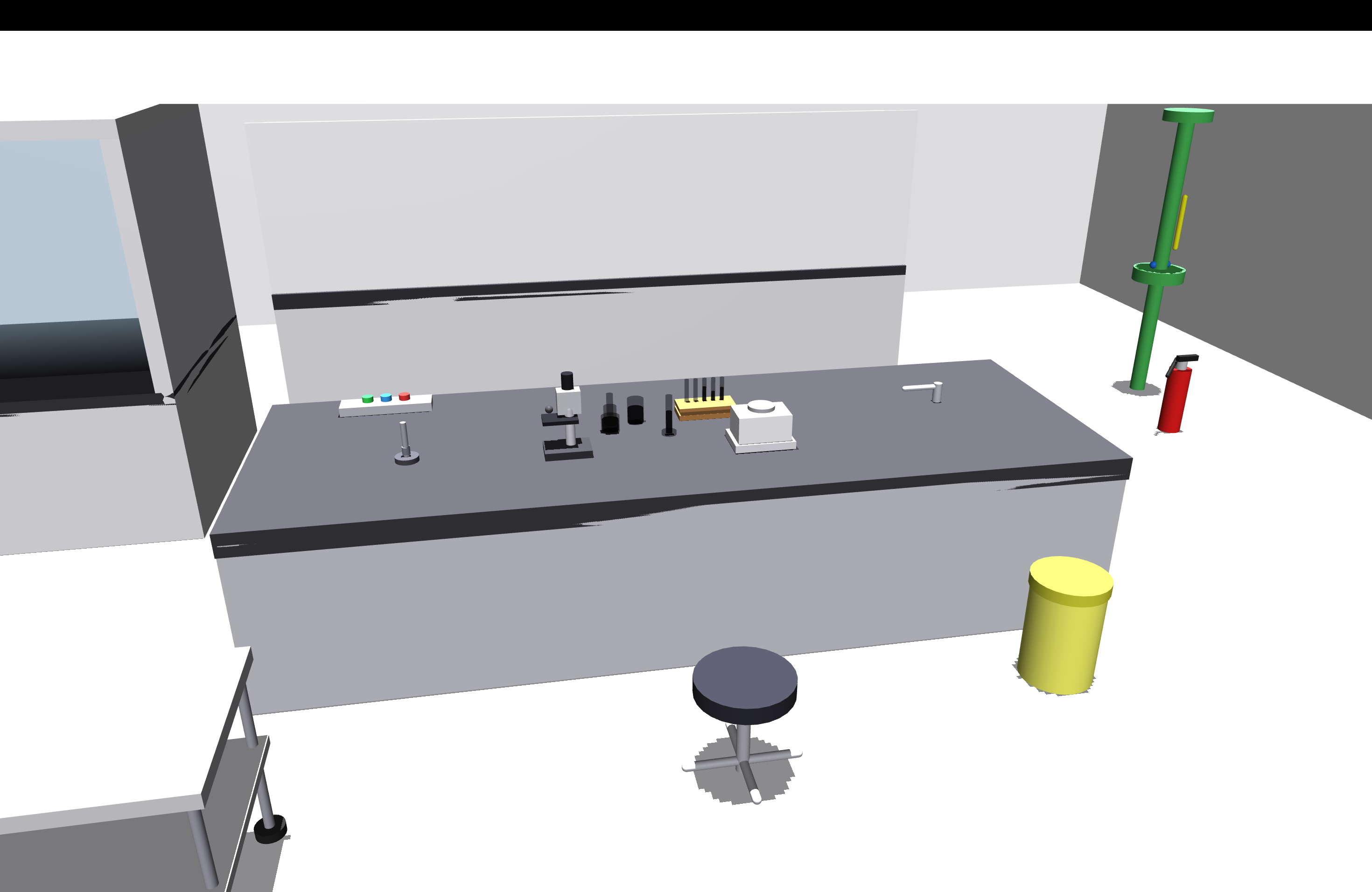
Chemistry Lab |
Robot models must be specified with a JSON configuration.
To work with additional robot models, set the ROBITS_CONFIG_DIR environment variable to another config folder. See the RoBits documentation for more details.
  export ROBITS_CONFIG_DIR=$HOME/code/robits/robits_config/additional_config_sim
mjedit examples/prompt/scene_coffee_shop.xml- Importing MuJoCo XML files may alter the internal structure, and some tags are discarded.
- Joints/actuators are discarded if they are not part of a robot description.
- Additional geom tags, including friction, conaffinity, or contype are not yet supported and discarded.
- Light/option/compiler elements are not implemented yet.
If you are looking for a robot editor for MuJoCo that supports all the assets please checkout Robola web
- Not all MuJoCo robot descriptions have an equivalent URDF representation.

