



A CLI tool to manage AI coding assistant sessions with optional issue tracker integration.
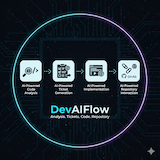
AI Assistants: Claude Code (fully tested) | GitHub Copilot, Cursor, Windsurf, Aider, Continue, Crush (experimental) Issue Trackers: GitHub Issues, GitLab Issues, JIRA (all fully supported)
Note on Support Status:
- Claude Code: Fully tested and production-ready ✅
- Other AI Assistants: Experimental - basic functionality works, full testing in progress
⚠️ - Issue Trackers:
- GitHub Issues: Production-ready via GitHub CLI (
gh) ✅- GitLab Issues: Production-ready via GitLab CLI (
glab) ✅- JIRA: Production-ready ✅
- API Compatibility: Supports both JIRA Cloud (API v3) and self-hosted JIRA (API v2) with automatic version detection
DevAIFlow helps you organize your AI assistant development work into focused sessions. Each session can optionally link to an issue tracker (GitHub Issues, GitLab Issues, or JIRA), track time automatically, and maintain context across work sessions. Perfect for managing multiple features, bugs, or experiments without losing context.
The tool integrates seamlessly with GitHub and GitLab for issue tracking, automated PR/MR creation with AI-powered template filling, and automatic linking between issues and pull requests.
When working with AI coding assistants on multiple tasks, you quickly encounter these challenges:
- Context Pollution - Mixing conversations from different tickets makes each session less focused and effective
- Lost History - Hard to remember what was discussed for each specific task
- Manual Ticket Updates - Constantly switching between terminal and browser to update tickets
- Time Tracking Gaps - No automatic record of time spent per task
- Branch Management - Manually creating and switching branches for each piece of work
DevAIFlow creates a one-to-one mapping between your work and AI assistant sessions:
Issue Tracker → Session → Conversations → AI Assistant
(PROJ-12345)  (backup)  (#1 backend,   (isolated
                         #2 frontend)    .jsonl files)
Each session is an isolated workspace with its own:
- AI assistant conversation history
- Git branch
- Time tracking
- Progress notes
- Optional JIRA link
Named workspaces enable concurrent multi-branch development - work on the same project in different workspaces (e.g., main branch + experimental feature) without conflicts.
🎯 Stay Focused
- One session per task means your AI assistant has full context for that specific work
- No more "Which ticket was that for?" confusion
- Resume exactly where you left off with complete conversation history
⏱️ Save Time
- Auto-creates git branches from issue keys
- Auto-transitions issue tracker tickets (GitHub, GitLab, or JIRA)
- Tracks time automatically when you open/close sessions
- Auto-creates PRs/MRs with AI-filled templates and issue linking
- No more manual ticket updates
📤 Enable Collaboration
- Export sessions with full conversation history for team handoffs
- Import teammate's sessions to see exactly what they discussed
- Share session templates for common workflows
🔧 Works Your Way
- Issue tracker integration is completely optional
- Use for personal experiments without any ticket
- Supports GitHub Issues, GitLab Issues, or JIRA - choose what works for you
- Gradually adopt features as needed
Key Features:
- 🤖 Multi-AI Support - Works with Claude Code, GitHub Copilot, Cursor, Windsurf, Aider, Continue, Crush
- 💰 Alternative Model Providers - Run Claude Code with local models (llama.cpp) or cheaper cloud providers (OpenRouter, Vertex AI) - save up to 98% on costs or run completely offline
- 📂 Multi-Repository Workflows - Work on one ticket across multiple repositories with shared context - Claude can coordinate changes across all projects in a single conversation
- 🏢 Named Workspaces - Multiple workspaces for concurrent multi-branch development
- 🎫 Optional Issue Tracker - GitHub Issues, GitLab Issues, or JIRA (your choice, or none at all)
- ⏱️ Time Tracking - Automatic tracking with pause/resume
- 🔄 Context Loading - Automatically reads AGENTS.md, CLAUDE.md, and issue tracker tickets
- 🌿 Git Integration - Auto-create branches and manage git workflow
- 🔗 GitHub/GitLab Integration - Automated issue tracking and PR/MR creation with AI-filled templates
- 📝 Progress Notes - Track progress with local-first notes
- 📤 Export/Import - Share sessions or backup your work
- ⚙️ Interactive Configuration - Full-featured TUI for easy configuration management
Path A: Create New Tickets (Recommended for new work)
# GitHub - Create issue with Claude's analysis
daf git new --goal "Add user authentication to API"

# JIRA - Create ticket with Claude's analysis
daf jira new story --parent PROJ-12345 --goal "Add user authentication to API"
Why this is better: Claude analyzes the codebase first, understanding implementation complexity before creating tickets with accurate descriptions and acceptance criteria.
Path B: Sync Existing Tickets (For already-assigned work)
# Sync GitHub/GitLab issues from all configured workspaces
daf sync

# Sync JIRA tickets from current sprint
daf sync --sprint current
When to use sync: Working on tickets already created by PM/team, sprint has pre-defined backlog.
# Install
pip install devaiflow

# Authenticate GitHub CLI
gh auth login

# Initialize configuration (interactive wizard)
daf init  # Configures workspaces, GitHub settings, etc.

# Install Claude Code commands and skills
daf skills  # Installs /daf-* slash commands into Claude Code

# Path A: Create new issue with analysis
daf git new --goal "Add two-factor authentication"
# ... Claude analyzes and helps create detailed issue ...
daf complete <session-name>

# Path B: Or sync existing assigned issues
daf sync

# Open a session (use session name - no quotes!)
daf open owner-repo-123

# Work in your AI assistant...
# Add progress notes
daf note owner-repo-123 "Completed API implementation"

# Complete the session
daf complete owner-repo-123# For Atlassian Cloud (https://yourcompany.atlassian.net):
# 1. Create base64-encoded credentials: echo -n "email:token" | base64
# 2. Set environment variables
export JIRA_AUTH_TYPE=basic
export JIRA_API_TOKEN=<BASE64_ENCODED_CREDENTIALS>
export JIRA_URL="https://yourcompany.atlassian.net"
# For Self-Hosted JIRA:
export JIRA_AUTH_TYPE=Bearer
export JIRA_API_TOKEN=<YOUR_JIRA_PAT>
export JIRA_URL="https://jira.example.com"
# Initialize and upgrade
daf init
daf skills
# Path A: Create new ticket with analysis
daf jira new story --parent PROJ-59038 --goal "Add two-factor authentication"
# ... Claude analyzes and helps create detailed ticket ...
daf complete <session-name>
# Path B: Or sync existing assigned tickets
daf sync --sprint current
# Open a session
daf open PROJ-12345
daf note PROJ-12345 "Completed API implementation"
daf complete PROJ-12345daf new --name "fix-login-bug" --goal "Fix login timeout issue"
daf open fix-login-bug
daf complete fix-login-bugWorkspaces: Organize projects by product or work on same project with different branches:
# Configure workspaces - organize by product
daf workspace add ~/development/product-a          # Auto-derives name: product-a
daf workspace add ~/development/product-b          # Auto-derives name: product-b
daf workspace add primary ~/development --default

# Or organize for concurrent multi-branch work
daf workspace add experiments ~/experiments

# Work on different products
daf new --name PROJ-123 -w product-a --path ~/development/product-a/backend

# Work on experimental branch (no conflict with main workspace!)
daf new --name PROJ-456 -w experiments --path ~/experiments/myproject

# Sessions remember their workspace
daf open PROJ-123  # Prompts to select which workspace if ambiguous
Multi-Project Workflows: Work across multiple repositories in a single session:
# Declarative: All projects at once (requires workspace)
daf new PROJ-123 -w primary --projects backend-api,frontend-app,shared-lib

# Iterative: Add projects as you go
daf open PROJ-123    # First open: select backend-api
# ... work in backend ...
daf open PROJ-123    # Second open: select "Create new conversation" → frontend-app
# ... work in frontend ...

# Complete creates PRs/MRs for all projects
daf complete PROJ-123
When to use multi-project: One ticket requires changes in multiple repositories (backend API + frontend UI + shared library). Benefits: unified time tracking, shared context across projects, one command creates all PRs/MRs.
Configuration: Use the interactive TUI for easy configuration:
# Launch the interactive configuration editor
daf config edit

# Launch interactive configuration editor
daf config edit
The TUI provides:
- 📑 Tabbed interface for all configuration sections
- 🤖 Model Provider management - Configure alternative AI models (llama.cpp, Vertex AI, OpenRouter)
- ✅ Input validation for URLs, paths, and required fields
- 💾 Automatic backup creation before saving
- 👀 Preview mode to review changes before saving
- ⌨️ Full keyboard navigation (Tab, Arrow keys, Ctrl+S to save)
- ❓ Built-in help screen (press
?)
Next Steps:
- Quick Reference: QUICKREF.md - All essential commands on one page
- Complete Guide: Quick Start Guide - Full walkthrough with examples
- All Workflows: WORKFLOWS.md - Step-by-step workflow documentation
Run Claude Code with local models or cheaper cloud providers instead of Anthropic API.
- 💵 Save Money: Up to 98% cheaper than Claude Opus ($15/M tokens vs $0.28/M tokens)
- 🔒 Privacy: Run completely offline with local models (no data leaves your machine)
- ⚡ Flexibility: Test different models for different use cases
- 🌐 No Vendor Lock-in: Switch providers anytime via simple config changes
| Provider | Model | Cost per 1M Tokens | vs Claude Opus | Best For |
|---|---|---|---|---|
| Anthropic | Claude Opus 4.6 | $15.00 | — | Production quality |
| Vertex AI | Claude Sonnet 3.5 v2 | ~$3.00 | 80% savings | Enterprise GCP users |
| OpenRouter | DeepSeek v3 | $0.28 | 98% savings | Cost-conscious cloud |
| llama.cpp | Local models | FREE | 100% savings | Offline/privacy |
🏠 Local/Offline (FREE)
- llama.cpp - Run Qwen3-Coder, DeepSeek-Coder locally (✅ Tested & Working)
- Setup time: 15-20 minutes | No internet required | Full IDE integration
☁️ Cloud Providers (CHEAP)
- OpenRouter - Access 100+ models at $0.28-3/M tokens (
⚠️ To be tested) - Vertex AI - Enterprise GCP with Claude models (✅ Tested & Working)
❌ NOT Compatible
- Ollama - Does NOT work with Claude Code (API incompatibility)
Using llama.cpp (Free Local Model):
# 1. Start llama.cpp server (one-time setup)
./llama-server -hf bartowski/cerebras_Qwen3-Coder-REAP-25B-A3B-GGUF:Q4_K_M \
    --alias "Qwen3-Coder" --port 8000 --jinja --ctx-size 64000

# 2. Configure daf profile
daf config edit  # Navigate to "Model Providers" tab

# 3. Use with daf
daf open PROJ-123 --model-profile llama-cpp
Using OpenRouter (Cloud, 98% cheaper):
# 1. Get API key from openrouter.ai
# 2. Configure profile in daf config edit
# 3. Use with daf
daf open PROJ-123 --model-profile openrouter-deepseek📖 Complete Alternative Model Provider Guide
- Detailed setup instructions for each provider
- Performance benchmarks and testing results
- Troubleshooting guide for common issues
- Model recommendations by use case
🎓 Step-by-Step Tutorial: Local llama.cpp Setup
- Complete beginner-friendly guide (15-20 minutes)
- Save 100% on AI costs forever
- Works completely offline
- Full Claude Code IDE integration
New to DevAIFlow? Choose your path:
- Quick Decision (2 min): Read What is DevAIFlow? to see if this tool is right for you
- Quick Start (5 min): Installation → Quick Start → Create your first session
- Complete Guide: Read the documentation sections below in order
📚 Complete Documentation - Full guides, references, and troubleshooting
Quick References (Start Here!):
- ⚡ Command Quick Reference - Single-page command reference (<5KB)
- 📖 Complete Workflows - Step-by-step workflow guide with examples
- 🤖 AI-Optimized Summary - Essential overview for AI tools (NotebookLM, Claude, etc.)
Core Documentation:
- Installation Guide - Setup instructions and requirements
- Quick Start - Getting started guide (5 minutes)
- Session Management - Understanding sessions and lifecycle
- GitHub Issue Integration - GitHub/GitLab issue tracking
- JIRA Integration - JIRA issue tracking
- Command Reference - Complete CLI command documentation
- Configuration - Customizing the tool for your workflow (includes JSON Schema validation)
- Troubleshooting - Common issues and solutions
Additional Resources:
- Alternative Model Providers - Run Claude Code with local models (llama.cpp) or alternative cloud providers (Vertex AI, OpenRouter)
- Tutorial: Local llama.cpp Setup - Step-by-step guide to save 100% on costs with free local models
- AI Agent Support - Compatibility matrix for different AI assistants
- Uninstall Guide - Complete uninstallation instructions
Validation:
- config.schema.json - JSON Schema for validating config.json (use
daf config validate)
DevAIFlow integrates with multiple AI coding assistants through a unified agent interface:
| Agent | Status | Installation | Features |
|---|---|---|---|
| Claude Code | ✅ Fully Supported | pip install claude-cli |
All features supported: session capture, resume, initial prompts, conversation export |
| Ollama | ✅ Supported | brew install ollama |
Run Claude locally with llama.cpp - all Claude Code features supported |
| GitHub Copilot | VS Code extension | Limited: No initial prompts, workspace-based sessions | |
| Cursor | https://cursor.sh | Limited: No initial prompts, workspace-based sessions | |
| Windsurf | https://codeium.com/windsurf | Limited: No initial prompts, workspace-based sessions |
Configuration:
# Set via environment variable
export DAF_AGENT_BACKEND="claude"  # or "ollama", "github-copilot", "cursor", "windsurf"

# Or in config file (~/.daf-sessions/config.json)
{
  "agent_backend": "claude"
}
Experimental Agent Limitations:
- ❌ Cannot send initial prompts via CLI (must paste manually)
- ❌ No discrete session files (workspace-based tracking only)
- ❌ Cannot export/import conversations
- ❌ Message counting not supported
⚠️ Time tracking is approximate
→ For production workflows, use Claude Code. Experimental agents are best for developers who already use those specific editors.
📚 See Experimental Agents Guide for detailed limitations, troubleshooting, and migration path.
DevAIFlow officially supports:
- macOS (Intel and Apple Silicon)
- Linux (Ubuntu, Debian, Fedora, RHEL, etc.)
- Windows 10/11 (see Windows Installation)
All core features work across platforms with automatic platform-specific handling for:
- Signal handling (SIGTERM on Unix, SIGBREAK on Windows)
- File locking (fcntl on Unix, atomic writes on Windows)
- Path separators (automatically handled via pathlib)
- Line endings (CRLF on Windows, LF on Unix)
- Python 3.10, 3.11, or 3.12 - For the
daftool (older versions like 3.9 may work but are not officially tested) - AI Assistant CLI - At least one supported AI assistant must be installed:
- Claude Code (version 2.1.3 or higher) - Required for slash commands and skills support
- GitHub Copilot (experimental)
- Cursor (experimental)
- Windsurf (experimental)
- Git - For branch management features
- GitHub CLI (
gh) (optional) - Required for creating GitHub PRs and fetching PR templates from private repos - GitLab CLI (
glab) (optional) - Required for creating GitLab MRs and fetching MR templates from private repos - Issue Tracker API Token (optional) - Only required if using issue tracker integration (JIRA currently supported)
See the Installation Guide for detailed setup instructions including issue tracker configuration.
If you're using GitHub Issues or creating PRs to GitHub repositories:
Install GitHub CLI:
# macOS
brew install gh

# Linux (Debian/Ubuntu)
sudo apt install gh

# Windows
winget install GitHub.cli
Authenticate:
# Interactive authentication (recommended)
gh auth login

# Follow the prompts to authenticate via browser or token
For repositories requiring fine-grained tokens:
Some organizations (like ansible-automation-platform) require fine-grained personal access tokens instead of classic tokens for enhanced security.
- Create fine-grained token: https://github.com/settings/personal-access-tokens/new
- Grant access to specific repository
- Set required permissions:
- Contents: Read and write
- Issues: Read and write
- Pull requests: Read and write
- Authenticate:
gh auth loginand paste the token
Verify authentication:
# Check authentication status
gh auth status

# Or use daf built-in check
daf git check-auth owner/repo
Pre-flight authentication checks:
DevAIFlow automatically checks GitHub authentication before operations and provides clear error messages:
- Detects when fine-grained tokens are required
- Provides actionable solutions for auth failures
- Prevents cryptic errors in CI/CD environments
See Troubleshooting Guide for common authentication issues.
DevAIFlow supports the following environment variables for customization:
- Purpose: Customize where DevAIFlow stores session data and configuration
- Default:
~/.daf-sessions - Example:
export DEVAIFLOW_HOME="~/custom/devaiflow-data"
daf init
- Purpose: Customize where Claude Code stores its configuration and data files (official Claude Code variable)
- Default:
~/.claude - Use Case: Useful for testing with multiple Claude Code configurations or custom storage locations
- Example:
export CLAUDE_CONFIG_DIR="~/.config/claude"
daf skills  # Skills will be installed to $CLAUDE_CONFIG_DIR/skills/
- Documentation: https://code.claude.com/docs/en/env-vars
- Purpose: Authenticate with JIRA instance
- Required for: JIRA integration
- See: Quick Start section above for examples
DevAIFlow is fully generic and works with GitHub, GitLab, or JIRA. Configuration is file-based and can be customized for your organization.
-
Quick Setup: Use configuration templates to get started
# Copy templates to your workspace
cp -r /path/to/devaiflow/docs/config-templates/* ~/workspace/myproject/

# Customize for your team
vim ~/workspace/myproject/backends/jira.json      # Set JIRA URL, transitions
vim ~/workspace/myproject/organization.json       # Set project key
vim ~/workspace/myproject/team.json              # Set team workstream

# Commit to git for team sharing
git add *.json backends/
git commit -m "Add DevAIFlow workspace configuration"
-
Interactive Config: Use the TUI for easy configuration management
daf config edit # Launch interactive configuration editor -
Workspace Configuration (Recommended for teams):
- Place config files in workspace root for team sharing
- Automatic discovery when running
daffrom any subdirectory - Version control your team's JIRA settings in git
- See
docs/config-templates/README.mdfor detailed guide
-
User Configuration (For personal use):
- Run
daf initto configure your JIRA instance - Settings stored in
$DEVAIFLOW_HOME/directory - Personal preferences only, no team sharing
- Run
-
Copy DAF_AGENTS.md: Copy the
DAF_AGENTS.mdfile to your project roots for automatic daf tool guidance in AI assistant sessions- This file is automatically loaded when opening sessions
- Provides complete command reference and best practices
- Customize JIRA templates to match your organization's standards
Configuration Files:
backends/jira.json- JIRA backend settings (URL, field mappings, transitions)organization.json- Organization-wide settings (project, field aliases)team.json- Team-specific settings (workstream, comment visibility)config.json- User personal preferences
See docs/config-templates/ for complete templates with detailed comments and examples.
For developers working on the DevAIFlow codebase:
# Setup
pip install -e ".[dev]"

# Run unit tests
pytest

# Run with coverage
pytest --cov=devflow --cov-report=html

# Run integration tests (shell-based end-to-end tests)
cd integration-tests
./test_jira_green_path.sh

# Run with mock services (isolated from production)
DAF_MOCK_MODE=1 pytest
DAF_MOCK_MODE=1 daf listThe project includes two types of tests:
Unit Tests (tests/):
- Python-based tests using pytest
- Test individual functions and classes
- Fast execution with mocks and fixtures
- Run with
pytest
Integration Tests (integration-tests/):
- Shell-based end-to-end workflow tests
- Test complete CLI command workflows
- Run in mock mode for isolation
- See
integration-tests/README.mdfor details
The tool includes a comprehensive mock services infrastructure for integration testing without affecting production data:
# Enable mock mode
export DAF_MOCK_MODE=1

# All commands now use mock services with isolated data
daf list              # Shows mock sessions only
daf new my-test       # Creates mock session

# Mock data is stored in $DEVAIFLOW_HOME/mocks/
# To clear: manually delete the mocks/ directory or use hidden command:
# daf purge-mock-data (developer utility, not shown in --help)
Mock services include:
- JIRA: Tickets, comments, transitions, attachments
- GitHub: Pull requests
- GitLab: Merge requests
- Sessions: Completely isolated session index
- Claude Code: Skipped (not launched in mock mode)
With Mock Mode (DAF_MOCK_MODE=1):
- ✅ Fast and isolated testing
- ✅ No real JIRA tickets created
- ✅ Claude Code launch is skipped (faster)
- ✅ Perfect for CI/CD pipelines
- ❌ Doesn't test real Claude Code integration
Without Mock Mode (no DAF_MOCK_MODE):
- ✅ Tests real Claude Code integration
- ✅ Tests real JIRA API operations
- ✅ Validates conversation export/import
- ✅ More realistic end-to-end testing
⚠️ Creates real JIRA tickets (requires cleanup)⚠️ Requires JIRA credentials and display environment
For collaboration testing, both approaches work:
- Use
DEVAIFLOW_HOMEto simulate multiple developers on one laptop - See
integration-tests/TEST_COLLABORATION_SCENARIO.mdfor detailed step-by-step guides - Automated test available:
test_collaboration_workflow.sh(with mock mode) - Manual testing guide available for no-mock testing (see TEST_COLLABORATION_SCENARIO.md)
See AGENTS.md for complete development guidelines, architecture, and coding standards.
Found a bug or have a feature request? Please report it on GitHub:
When reporting bugs, please include:
- Steps to reproduce
- Expected vs actual behavior
- Your environment (OS, Python version, daf version)
- Relevant error messages or logs
For security vulnerabilities, please see SECURITY.md for responsible disclosure guidelines.
We welcome contributions! See CONTRIBUTING.md for guidelines on:
- Development setup
- Running tests
- Submitting pull requests
- Code style guidelines
Apache License 2.0