



- 📜 Description
- 📸 Images (preview)
- ⚙️ How it works
- 🛠️ Installation
- 🔄 Mover Tuning Plugin
- ⏰❌ Why can't I use cron/scheduling for this script?!
- 🔄 Can I make the script start on startup/reboot?
- ⚙️ Script Settings
- 🤖 Telegram Bot Setup
- 🖥️ Discord Webhook Setup
- 🐛 Reporting Issues
- ⚖️ License
This Bash script monitors the progress of the "Mover" process and sends updates to Discord and/or Telegram webhooks. It provides real-time notifications on the status of the data moving process from SSD Cache to HDD Array.

- When the script runs, it continuously loops and waits for the Unraid Mover script to start.
- Once it detects the Unraid Mover script, it posts the initial notification to your Discord or Telegram webhook.
- It calculates the total amount of data on your cache, excluding the paths you specify. The estimation of the remaining time can vary.
- You can exclude specific folders from the mover process, such as those used by other applications like qBittorrent and SABnzbd, or any hidden folders.
- The script posts a progress update based on the percentage of data moved, configurable via the
NOTIFICATION_INCREMENTsetting. - If the mover process completes successfully, the script posts a final notification indicating 100% completion and exits.
- If the mover process stops unexpectedly, the script detects this and sets the completion status to 100%, posting the final notification accordingly.
I'm using the UnraidOS plugin named "User Scripts"
- Go into "Settings"
- Select "User Scripts"
- Select "Add New Script"
- Name your script "Mover Status" (or anything else)
- Select/hover the Settings Wheel icon of the Mover Status script you just created
- Select "Edit Script"
- Copy everything from the moverStatus.sh into the file
- Edit the variables at the top to your liking (you don't have to define any excluded folders - leave them empty if you don't need to exclude folders)
- Select "Save Changes" to save the script
- Use Run in Background to run the script
- Cron-jobs should NOT be used with the script
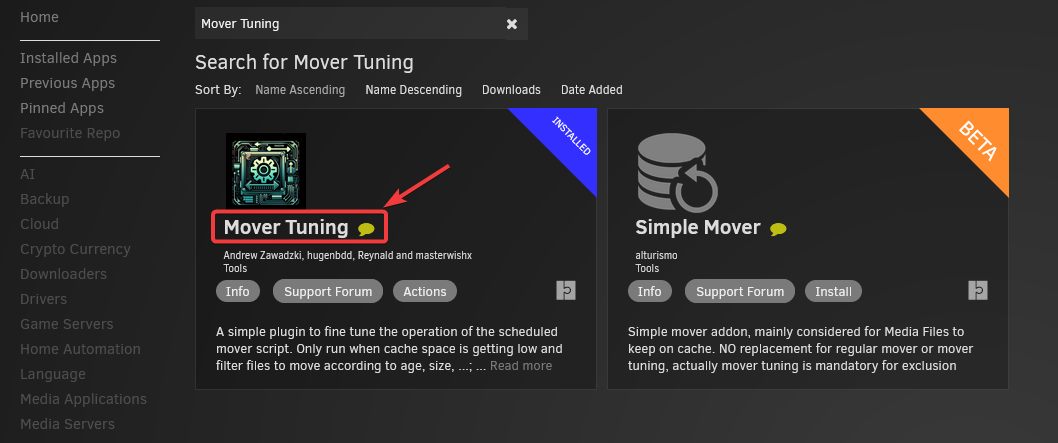
If you are using the "Mover Tuning" plugin for Unraid, please ensure you have the latest version installed. The old version has been removed from the Unraid app/plugin store and will not be auto-removed. Users must manually update to the new version.
The Unraid "User Scripts" plugin uses a "lockfile" to prevent multiple instances of a script running simultaneously. Adding our own "lockfile" function to the script itself, causes the plugin to lose track of the script, making it appear as if it's not running, even though it is running correctly in the background. Because the script runs in a loop, I've yet to find a way to integrate it with cron/scheduling while maintaining compatibility with the User Scripts plugin.
Well, somewhat! You can make it start, whenever you start up your Unraid array
- Go into "Settings"
- Select "User Scripts"
- Find the Mover Status script
- To the right, click on the "Schedule disabled"
- Select "At Startup of Array" (screenshot)
- Press the "Apply" to save the change
- Select "Done"
- The script will now launch automatically, when you start your array!
Edit the script to configure the necessary settings:
USE_TELEGRAM: Set totrueto enable Telegram notifications.USE_DISCORD: Set totrueto enable Discord notifications.TELEGRAM_BOT_TOKEN: Your Telegram bot token.TELEGRAM_CHAT_ID: Your Telegram group or channel chat ID.DISCORD_WEBHOOK_URL: Your Discord webhook URL.DISCORD_NAME_OVERRIDE: The display name for Discord notifications.NOTIFICATION_INCREMENT: The frequency of notifications in percentage increments.DRY_RUN: Set totrueto test notifications without actual monitoring.ENABLE_DEBUG: Set totrueto enable debug logging.
-
Create a Telegram Bot:
- Open Telegram and search for the user
@BotFather. - Start a chat with
@BotFatherand send the command/start. - To create a new bot, send the command
/newbot. - Follow the instructions to name your bot and receive your bot token.
- Save the bot token for later use.
- Open Telegram and search for the user
-
Invite the Bot to Your Group or Channel:
- Create a new group or channel in Telegram.
- Invite your bot to the group or channel. Make sure to promote it to an admin if you want it to have full access to send messages.
-
Send a Message in the Group or Channel:
- Send any message in the group or channel to generate activity that the bot can access.
-
Get Your Telegram Group or Channel Chat ID:
- Visit the following URL in your web browser, replacing
YOUR_BOT_TOKENwith your actual bot token:https://api.telegram.org/botYOUR_BOT_TOKEN/getUpdates - Look for the
chatobject in the JSON response to find yourTELEGRAM_CHAT_ID. For example, in the response:{ "ok": true, "result": [ { "update_id": 123456789, "message": { "chat": { "id": -1001122334455, "title": "Your Group or Channel Name", "type": "supergroup" } } } ] }
- Visit the following URL in your web browser, replacing
The TELEGRAM_CHAT_ID would then be -1001122334455.
- Go to your Discord server settings.
- Navigate to the "Integrations" section and click "Webhooks".
- Click "New Webhook" and configure it.
- Copy the Webhook URL.
- The webhook URL can be used for
DISCORD_WEBHOOK_URL.
If you encounter any issues or have feature requests, please create a new issue on GitHub by following these steps:
- Go to the Issues tab in the repository.
- Click on New Issue.
- Select the appropriate issue template and fill out the required details.
- Submit the issue.
Note: Please do not reach out for support via Discord, as there is no official Discord server for this project. All support requests should be submitted as GitHub issues.


This project is licensed under the AGPLv3 License - see the LICENSE file for details.