This is a fork of jasonrudolph/keyboard with my personal customizations. The majority of the content was written by jasonrudolph. I've simply modified it to better suit my preferences.
- Access ctrl and esc on the home row
- Navigate (up/down/left/right) via the home row
- Navigate to previous/next word via the home row
- Arrange windows via the home row
- Enable other commonly-used actions on or near the home row
- Format text as Markdown
- Launch commonly-used apps via global keyboard shortcuts
- And more...
By repurposing the anachronistic caps lock key, we can make ctrl and esc accessible via the home row.
- Tap caps lock for esc
- Hold caps lock for ctrl
To activate, push the s and d keys simultaneously and hold them down. Now you're in (S)uper (D)uper Mode. It's like a secret keyboard inside your keyboard. (Whoa.) It's optimized for keeping you on the home row, or very close to it. Now you can:
- Use h / j / k / l for left/down/up/right respectively
- Use space for alt
- Use f for cmd
- Use i / o to move to the previous/next tab
- Use u / p to go to the first/last tab (in most apps)
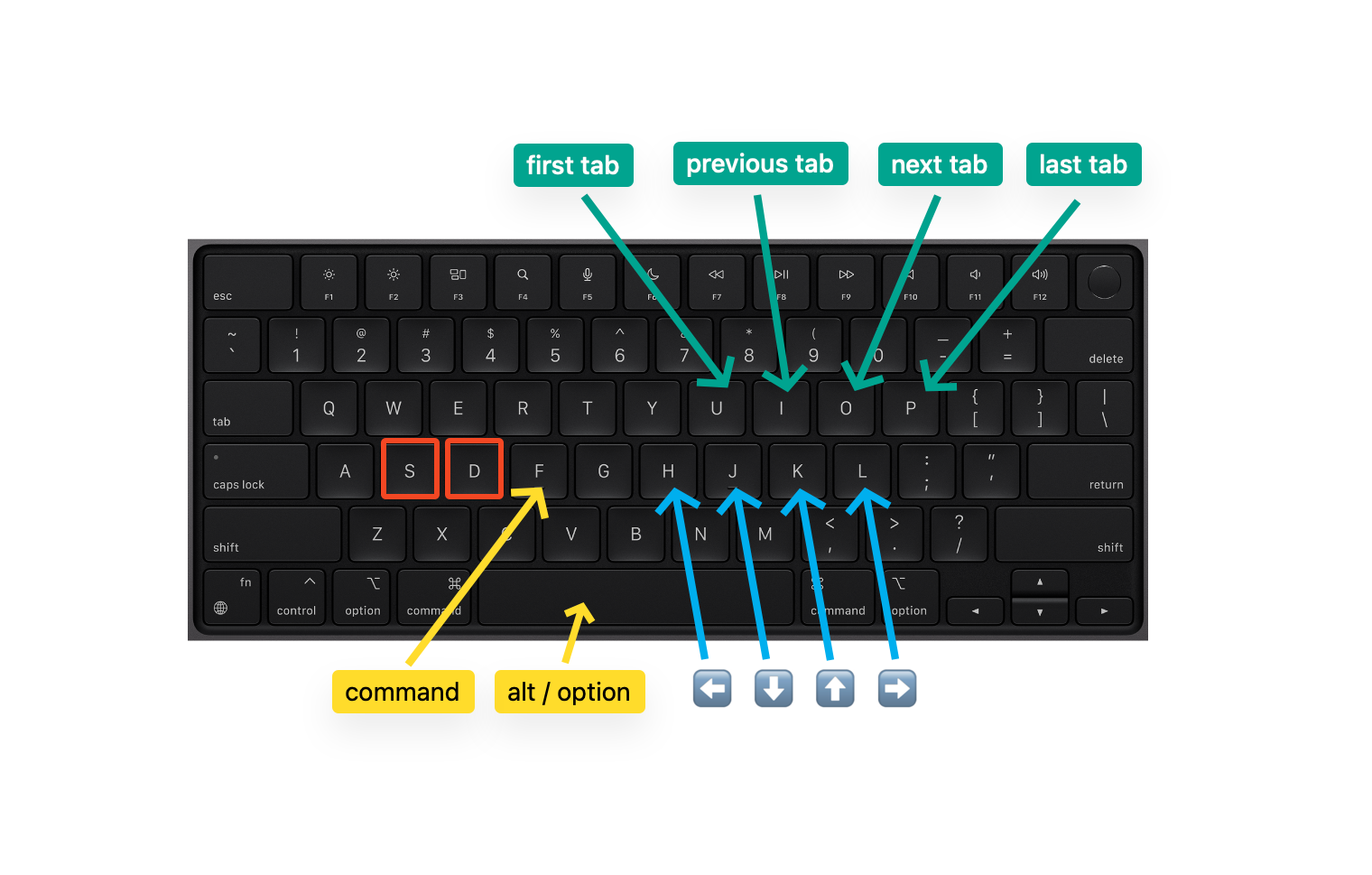
📣 Shout-out to Karabiner's Simultaneous vi Mode for providing the inspiration for (S)uper (D)uper Mode.
Quickly arrange and resize windows in common configurations, using keyboard shortcuts that are on or near the home row. (Or, feel free to choose your own keyboard shortcuts.)
Use Hyper + w to turn on Window Layout Mode. Then, use any shortcut below to make windows do your bidding. For example, to send the window left, hit Hyper + w, and then hit h.
- Use h to send window left (left half of screen)
- Use j to send window down (bottom half of screen)
- Use k to send window up (top half of screen)
- Use l to send window right (right half of screen)
- Use shift + h to send window to left 40% of screen
- Use shift + l to send window to right 60% of screen
- Use i to send window to upper left quarter of screen
- Use o to send window to upper right quarter of screen
- Use , to send window to lower left quarter of screen
- Use . to send window to lower right quarter of screen
- Use space to send window to center of screen with full height
- Use shift + space to send window to center of screen but not full height
- Use enter to resize window to fill the screen
- Use n to send window to the next monitor
- Use ← to send window to the monitor on the left (if there is one)
- Use → to send window to the monitor on the right (if there is one)
- Use Hyper + w to exit Window Layout Mode without moving any windows


Window Layout Mode ships with the default keybindings above, but you're welcome to personalize this setup. See hammerspoon/windows-bindings-defaults.lua for instructions on configuring shortcuts to your personal taste.
Perform common Markdown-formatting tasks anywhere that you're editing text (e.g., in a GitHub comment, in your editor, in your email client).
Use ctrl + m to turn on Markdown Mode. Then, use any shortcut below to perform an action. For example, to format the selected text as bold in Markdown, hit ctrl + m, and then b.
-
Use b to wrap the currently-selected text in double asterisks ("B" for "Bold")
Example:
**selection** -
Use c to wrap the currently-selected text in backticks ("C" for "Code")
Example:
`selection` -
Use i to wrap the currently-selected text in single asterisks ("I" for "Italic")
Example:
*selection* -
Use s to wrap the currently-selected text in double tildes ("S" for "Strikethrough")
Example:
~~selection~~ -
Use l to convert the currently-selected text to an inline link, using a URL from the clipboard ("L" for "Link")
Example:
[selection](clipboard) -
Use ctrl + m to exit Markdown Mode without performing any actions
macOS doesn't have a native hyper key. But thanks to Karabiner-Elements, we can create our own. In this setup, we'll use the esc key as our hyper key (which maps to shift + ctrl + alt + cmd when held).
With a new modifier key defined, we open a whole world of possibilities. I find it especially useful for providing global shortcuts for launching apps.
Hyper Mode ships with the default keybindings below, but you'll likely want to personalize this setup. See hammerspoon/hyper-apps-defaults.lua for instructions on configuring shortcuts to launch your most commonly-used apps.
- hyper + a to open App Store ("A" for "App")
- hyper + b to open Google Chrome ("B" for "Browser")
- hyper + f to open Finder ("F" for "Finder")
- hyper + h to reload Hammerspoon config ("H" for "Hammerspoon")
- hyper + p to open System Preferences ("P" for "Preferences")
- hyper + t to open Terminal ("T" for "Terminal")
- hyper + x to open Xcode ("X" for "Xcode")
For the current customized keybindings in this setup, see hammerspoon/hyper-apps.lua.
- Use ctrl + - (dash) to split iTerm2 panes horizontally
- Use ctrl + | (pipe) split iTerm2 panes vertically
- Use ctrl + h / j / k / l to move left/down/up/right by one pane in iTerm2
- Use ctrl + u to delete to the start of the line
- Use ctrl + ; to delete to the end of the line
- Use alt + h / l to delete the previous/next word
This setup is honed and tested with the following dependencies.
- macOS Sequoia, 15.7
- [Karabiner-Elements 15.5.0][karabiner]
- [Hammerspoon 1.0.0][hammerspoon]
-
Run these
git clone https://github.com/TanakritBenz/keyboard.git ~/.keyboard

cd ~/.keyboard

script/setup
-
Enable accessibility and permissions to allow Hammerspoon and Karabiner to do their thing.