Tyler Procko
For Professor Lehr, ERAU Daytona Spring 2021.
Here's the PDF file.
Uses a few GIS functions to determine the nearest contour line on the map, and thereby deduce a "parcel's elevation". Initial efforts were with ST_Intersects, ST_Project, ST_MakePoint, ST_InterpolatePoint and so forth; the idea then was to cast out a ray in each cardinal direction from the centroid of a given parcel, and from these rays find all intersections with contour lines, then pick the closest intersecting contour line and choose it as the parcel's height. This was functional but vastly complex (on the order of quintuply-nested GIS function calls) for each direction (N, E, S, W)...
So I thought about it some more, and ended up reducing all the effort to a simple call of ST_Distance, feeding the function parcel centroids and all contour lines in the zip codes 32114 and 32118. Each parcel centroid has a distance computed to every single contour line - and with some SQL magic (the min function lol) we can get the closest contour line, which is presumed to be the parcel's elevation. This is output into a table called contours_analysis. With this table, and parids in it, we can map to whatever we want, specifically sales_analysis. So now we can perform some sales analysis with respect to parcel elevation.
The general assumption is that a higher elevation indicates more property value (because of the flood-resistance and impossibility of cheap, below sea-level swamp land); but this is likely untrue for beachfront properties, which are generally right at sea-level and cost a ton.

- ONLY 32114 AND 32118 ZIP CODES HAD ELEVATIONS POPULATED... all others ignored for time. RUN IT YOURSELF IF YOU NEED OTHER ZIP CODES.
- The reason only two zip codes were completed is because this is not a simple data set like many other students: each parcel must have its distance compared to nearly 40,000 elevation objects, as opposed to a project like this, which only has about 200 objects to check distance against. In other words: it is computationally infeasible to do more than a few ZIP codes each time with my project. You must build them as you need them.
- ENSURE YOU SWITCH TO 'IMPORT' (NOT EXPORT) WHEN IMPORTING A CSV FOR A TABLE, THEN CHECK 'HEADER' SO THE COLUMN NAMES ARE IMPORTED TOO

If you only care about ZIP codes 32114 and 32118, just do the following:
- Download my elevation table (called contours_analysis2.csv)
- PGAdmin makes you create a table first, so run the following two commands in PGAdmin
drop table if exists volusia.contours_analysis2;create table volusia.contours_analysis2 (parid double precision, elev integer);- Import this csv to the volusia schema by right-clicking the new table (after refreshing), click Import/Export, make sure it's on 'Import', then check 'Header'; now import the csv
- Optionally, use this command to "import":
COPY volusia.contours_analysis2 FROM 'C:\...\contours_analysis2.csv' WITH (FORMAT 'csv', DELIMITER E',', NULL '', HEADER); - Done

This table has two columns: parid, elevation. You add the columns to other tables yourself, equating on parid. For instance, if I wanted to add the elevation column to the sales_analysis table, I would do:
alter table volusia.sales_analysis add column parcel_elevation integer;

update volusia.sales_analysis s
set parcel_elevation = c.elev
from volusia.contours_analysis2 c
where s.parid = c.parid;
Now we go onto the detailed steps of reproducing my work... remember, you don't have to do this unless you want other ZIP codes.
If you're lazy, just download the contours.csv.zip file in this Github, extract the CSV and make that a table in postgis with the table name contours.
drop table if exists volusia.contours;create table volusia.contours (objectid bigint, geom geometry, elev integer);
If you did this, skip to Step 2. Otherwise, read on for the full process of getting and loading the contours file from the Volusia site.
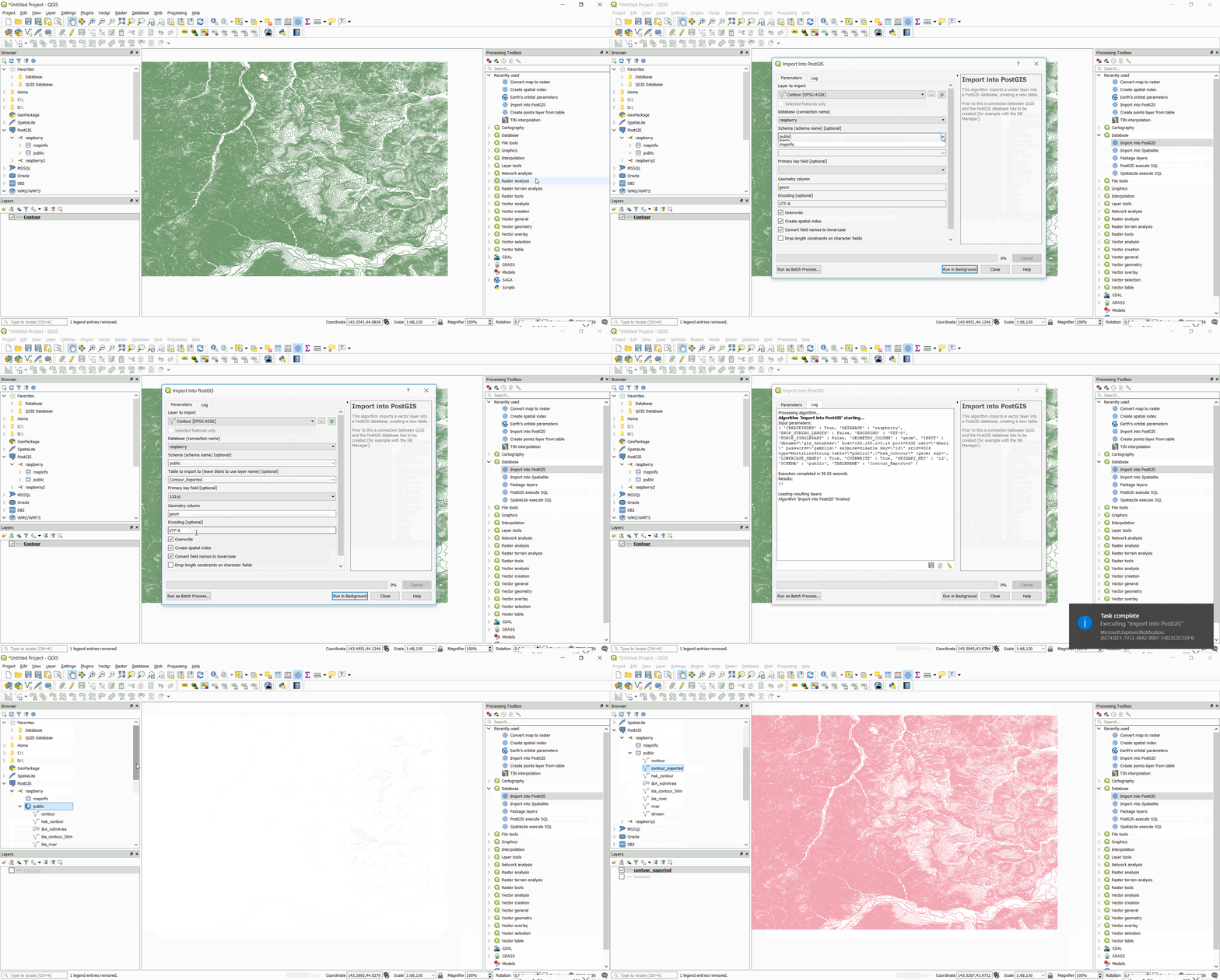
Download this: http://maps.vcgov.org/gis/download/shpfiles/contours.zip. I put the .shp file into QGIS like we are taught (new vector layer). There are some ways to get the contours layer into your SQL server, but since we already have QGIS open, follow these steps:
- Click the Processing tab up top
- Click Toolbox
- A menu will pop up on the right of QGIS
- Click Database
- Click Export to PostgreSQL
- Select the contours layer (should already be selected)
- Type in your login info and the schema you're adding to (volusia)
- Leave the table name blank, it will default to "contours"
- Don't touch anything else
- Scroll down and click Run
- Go to PGAdmin and refresh the volusia schema; the contours table should be there
Download the queries.sql file and run the queries one after another in PGAdmin - the SQL file is commented. Another way is to download the final elevation table (called contours_analysis2.csv), put it in your volusia schema and you have all of the elevation numbers for the zip codes I chose (32114 and 32118). It saves you the query time, and you just have to join it to other tables yourself (scroll up). The csv file may look empty in the elevation column, but it's because only 17000-ish parcels exist in those two zip codes.
The number 2236 you see in the first query is GIS' SRID for multi-point lines, which is what the contours are. That number shows up in my query because it acts like a cast for the centroid of the parcel, which is a lonlat, point SRID (4326). It's necessary to "cast" it so that the ST_Distance function works.
- The first query will take about 45 minutes (edit the ZIP codes in the where clause to get the ones you want)
- The second query will take about 20 minutes (creates this file)
- Total time of queries (for my PC and for just two ZIP codes): about an hour
Now you have the contours_analysis2 table, which has parid with elevation. You can join it with your other tables (scroll up to Step 0).
REMINDER: If you only care about the ZIP codes 32114 and/or 32118, then you don't have to run any of these. Just download the contours_analysis2 table, and join it with other tables (scroll up to Step 0).
That's it. It's rather straightforward.
Recall: you can do this right from the "easy method", skipping steps 2 and 3.
- You have to have a geom column in the table you have the elevation column to be able to represent it in QGIS
- Put whatever table you have the elevation column in (probably sales_analysis) in the following queries
- Run the following:
select AddGeometryColumn ('volusia', 'PUT_TABLE_HERE', 'geom', 2236, 'MULTIPOLYGON', 2); - And run this:
update volusia.PUT_TABLE_HERE a set geom = p.geom from volusia.gis_parcels p where a.parid=p.altkey; - Open QGIS and make sure you're connected to the server. Add a PostGIS layer and select the SQL table that has the elevation column you just updated with geom. Right click the layer, go to properties. On Symbology do Graduated, for the symbol 'parcel_elevation'. Enter values for the elevation column like 0-5, 6-10, 10-20 etc., and give them each a color. You can specify a color graduation so it blends.
