In MS Windows system, we can modify the layout and mapping relationship of keyboard keys through Scancode Map. So we can use it to create our own personalized keyboard layout.
Colemak is a more efficient and labor-saving English typing keyboard layout, using it allows us to type in English more quickly. Its layout diagram about looks like this:
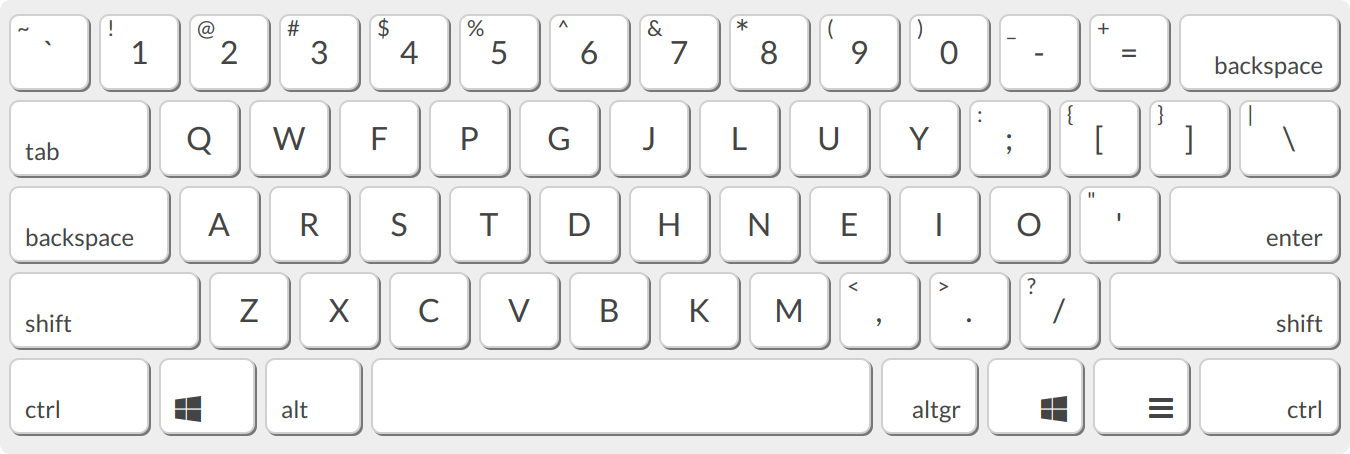
In addition to modifying the registry, of course, you can also use Autohotkey, PowerToys and other tools to modify the mapping relationship of the keyboard, but the disadvantage of this type of method is that it cannot be done once and for all, and must rely on the startup of the software or run the relevant scripts to take effect. And if you play fast, it will be easy to have sticky keys, that is, the program does not have time to process the remapped keys, resulting in the original keys that continue to trigger. There is also the key modified in this way may not take effect on the lock screen, and it must wait for the system to enter the desktop to take effect, which is not good to use. However, by setting the registry's Scancode Map, it is possible to permanently modify the keyboard layout or remap the keys, and it is also possible to completely avoid sticky keys. So, using this principle, we can remap QWERTY to Colemak's keyboard layout by setting the 'Scancode Map' value of the registry.
The registry code that remaps to the Colemak keyboard layout is as follows:
Windows Registry Editor Version 5.00

;; Colemak layout for MS Windows

;; For this to work you have to make sure that the US (QWERTY) layout is installed,
;; that is set as the default layout, and that it is set as the current (colemak) layout.
;; Otherwise some of the key mappings will be wrong.

;; Qwerty Keyboard Layout
;; ---------------------------------------------
;;   ~  !  @  #  $  %  ^  &  *  (  )  _  +  ____
;;   `  1  2  3  4  5  6  7  8  9  0  -  =   BS
;;  ___                                {  }  |
;;  Tab  q  w  e  r  t  y  u  i  o  p  [  ]  \
;;  ____                             :  "  _____
;;  Caps  a  s  d  f  g  h  j  k  l  ;  '  Enter
;;  _____                       <  >  ?  _______
;;  Shift  z  x  c  v  b  n  m  ,  .  /   Shift

;; Colemak Keyboard Layout
;; ---------------------------------------------
;;   ~  !  @  #  $  %  ^  &  *  (  )  _  +  ____
;;   `  1  2  3  4  5  6  7  8  9  0  -  =   BS
;;  ___                                {  }  |
;;  Tab  q  w  f  p  g  j  l  u  y  ;  [  ]  \
;;  ____                                "  _____
;;  Caps  a  r  s  t  d  h  n  e  i  o  '  Enter
;;  _____                       <  >  ?  _______
;;  Shift  z  x  c  v  b  k  m  ,  .  /   Shift

[HKEY_LOCAL_MACHINE\SYSTEM\CurrentControlSet\Control\Keyboard Layout]
"Scancode Map"=hex:00,00,00,00,00,00,00,00,19,00,00,00,\
;; Remapping code for the first line of keys
21,00,12,00,\ ;; e -> f
19,00,13,00,\ ;; r -> p
22,00,14,00,\ ;; t -> g
24,00,15,00,\ ;; y -> j
26,00,16,00,\ ;; u -> l
16,00,17,00,\ ;; i -> u
15,00,18,00,\ ;; o -> y
27,00,19,00,\ ;; p -> :;

;; Remapping code for the second line of keys
13,00,1F,00,\ ;; s -> r
1F,00,20,00,\ ;; d -> s
14,00,21,00,\ ;; f -> t
20,00,22,00,\ ;; g -> d
31,00,24,00,\ ;; j -> n
12,00,25,00,\ ;; k -> e
17,00,26,00,\ ;; l -> i
18,00,27,00,\ ;; ;: -> o

;; Remapping code for the third line of keys
25,00,31,00,\ ;; n -> k

;; CapsLock remap to LeftCtrl
1D,00,3A,00,\
;; End code
00,00,00,00Just save the above code to a file with the suffix '.reg' or download the qwerty2colemak.reg file from this repository, then double-click to run it to complete the modification, and restart the computer after success.
- Open the Registry Editor (regedit.exe).
- Navigate to
HKEY_LOCAL_MACHINE\SYSTEM\CurrentControlSet\Control\Keyboard Layout. - In the right pane, locate and delete the "Scancode Map" entry.
- Close the Registry Editor and restart your computer.