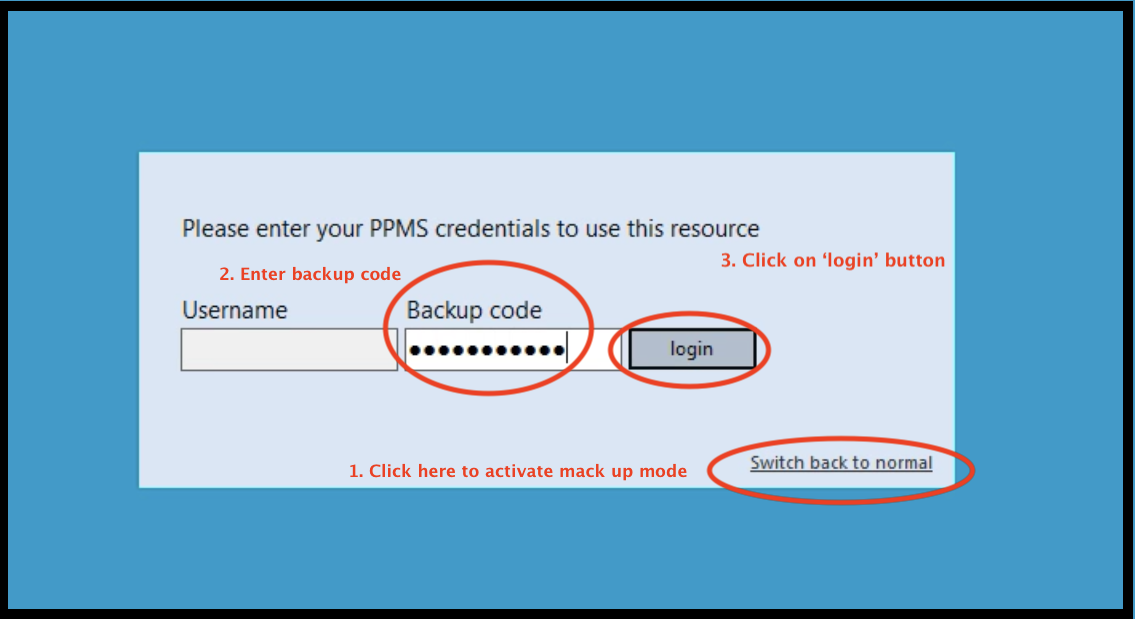
If you need to enter the system as an admin, Please enter the backup code.
Details
1. Click on the link ***use backup code to unlock***.

2. Enter backup code in the text box ( Please note the backup code is the same phrase which use to login into 'cmmadmin' account. If you have any issues, please send an email to r.ali1@uq.edu.au)

3. click on **'login'** button. Now you are in the system and can use it as an admin.
Details
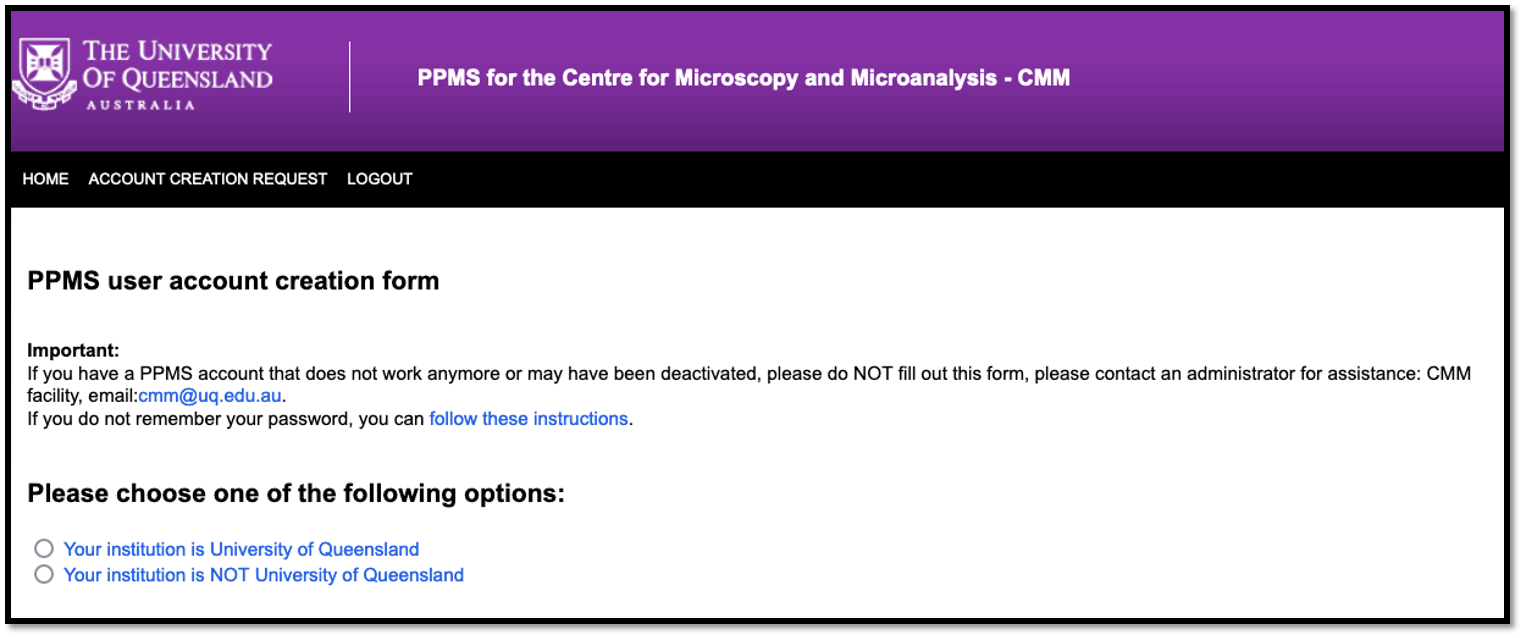
Please note that it is compulsory to register yourself as a user in PPMS instrument booking system.
-
Please make sure you are registered on PPMS instrument booking system.
-
If you are already a PPMS user, please go to Step 2.
-
If you are not a PPMS user, please complete user registration form https://au.ppms.info/uq-cmm/areq/?pf=2
Please note that it is compulsory to book your session in PPMS instrument booking system.
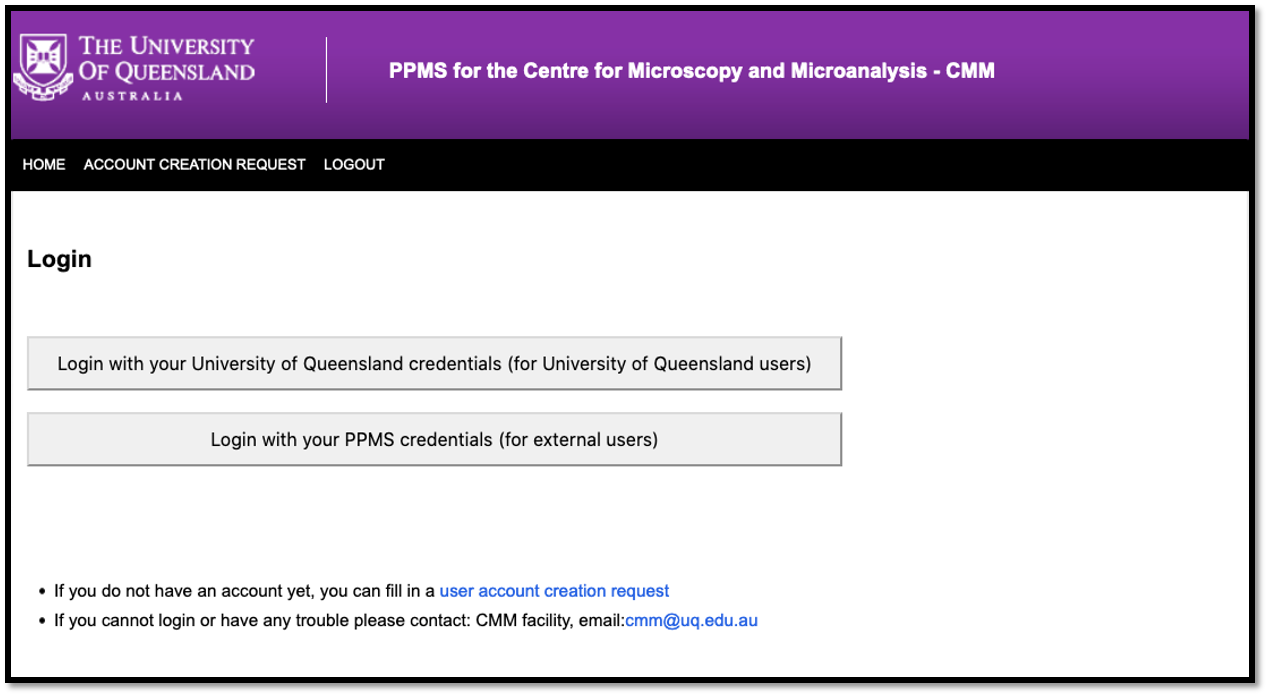
- Once your PPMS account is approved by CMM staff. Please login to PPMS using your UQ username and password.
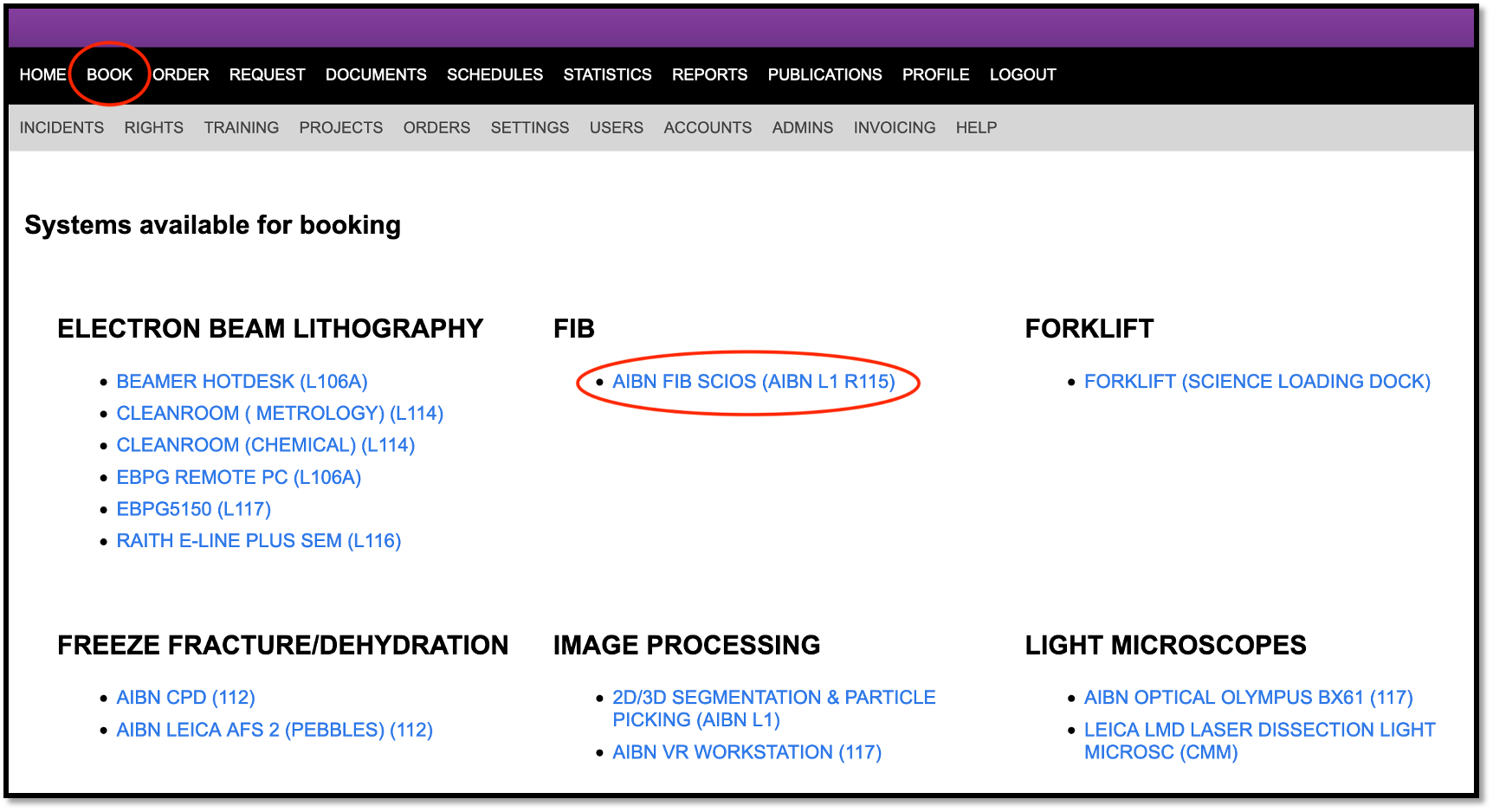
- On your home page please click on ‘Book’ on top bar.
- Please select the instrument from the list of instruments.
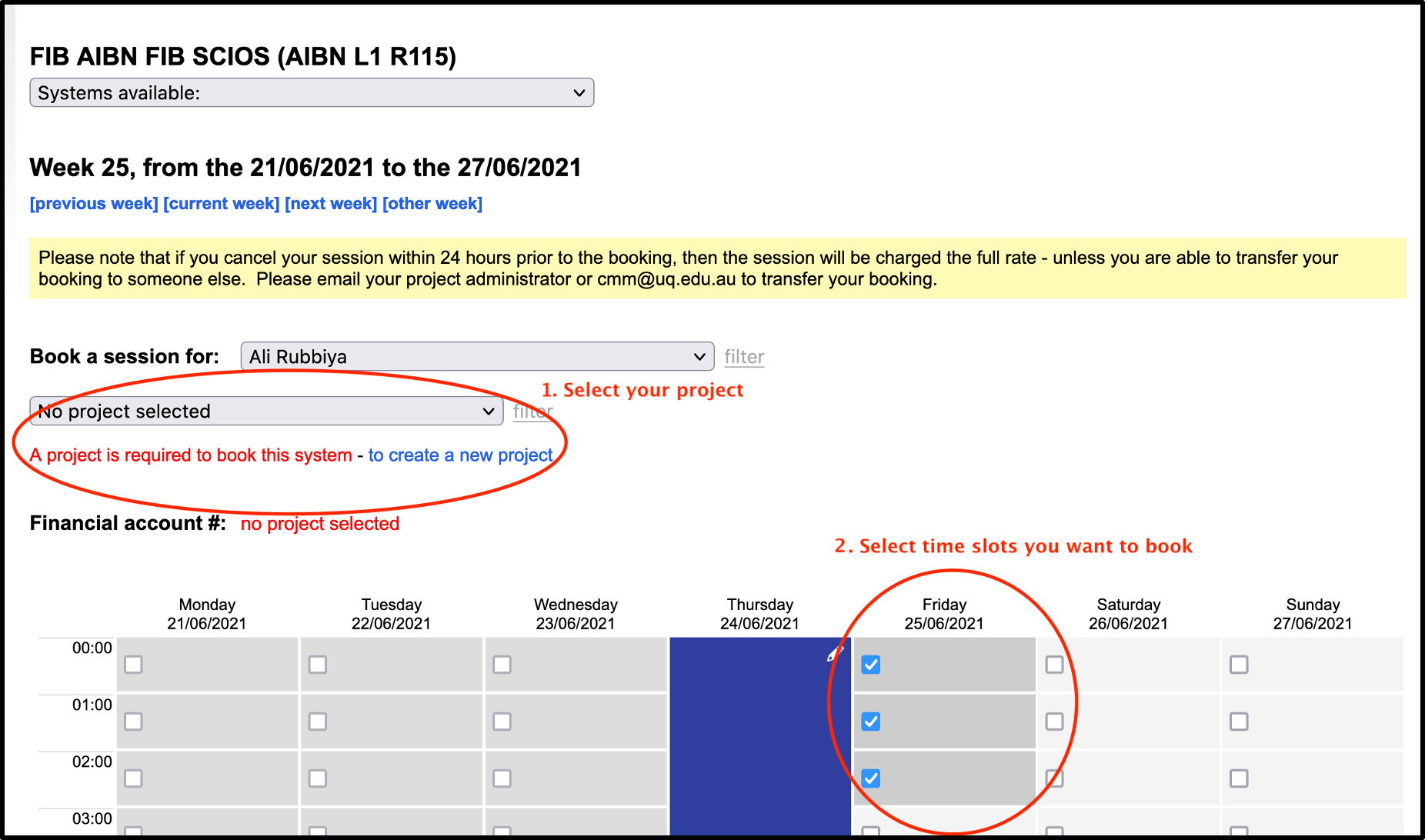
- On the booking calendar, please select Project, time slots to be booked and click the button Book the selected sessions.

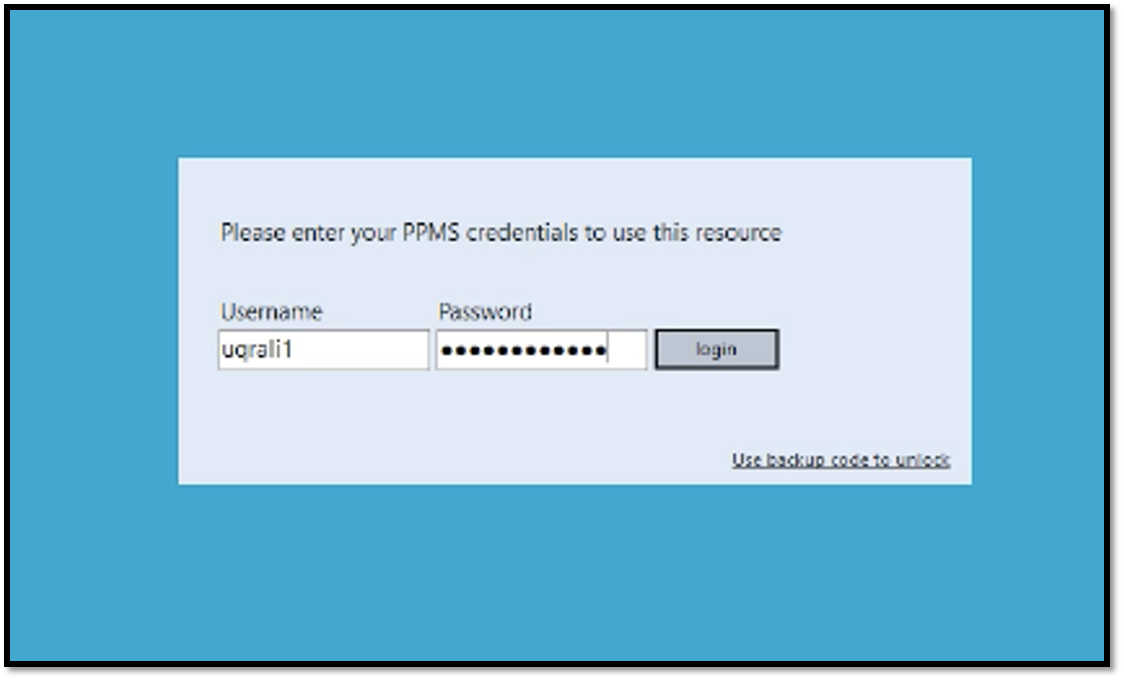
- On the Instrument computer, on login screen please enter your UQ username and password.
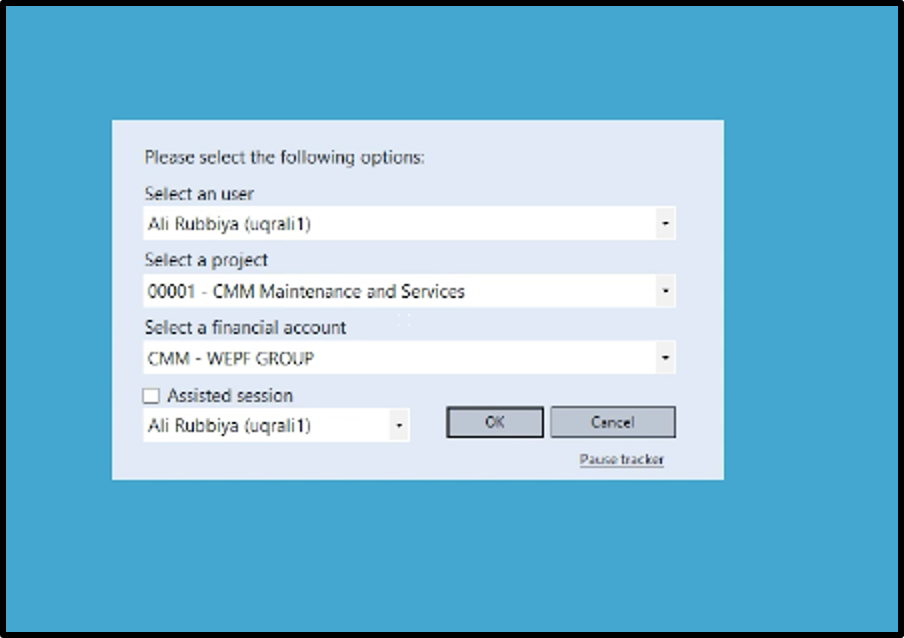
- Please select project. Make sure you select the right project.
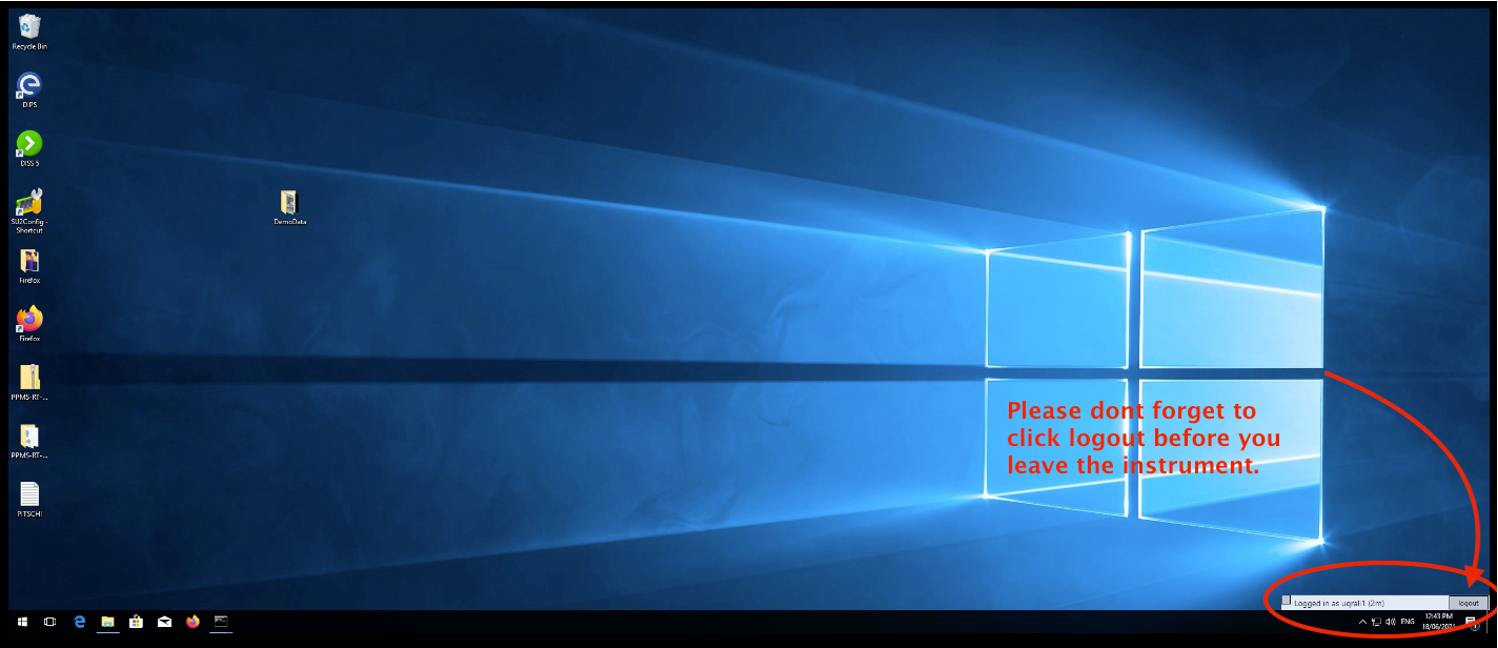
Now you can use the system. Once you finish the work please log out of the system.