When the app takes a screenshot, it needs time to process the image and save it to local storage. During this process, the app temporarily stores a large amount of image data in memory. If another screenshot attempt is made before the first one finishes, the system may not be ready to handle the new request. This can lead to increased memory usage, causing slowdowns or even app crashes. To address this, the Screenomics app implemented a mechanism to manage screenshots by allowing only one screenshot to be processed at a time. This approach prevents memory congestion and system overload by rejecting additional capture requests until the previous screenshot is fully processed, resulting in a "no image" log for attempts made during that time.
- Buffer and Concurrency Issues: If the app is busy processing a screenshot and a new request comes in, the system might not have enough space or resources to capture the new image. This can lead to failures in processing the second request because the system isn't ready to handle it.
- File Writing Delay: If saving a screenshot takes too long, any new requests may miss the chance to capture an image, resulting in "No Image."
- Device Speed: Faster devices with better processors can handle tasks more efficiently. High-end devices are less likely to encounter "no image" issues compared to low-end devices.
- Storage Speed: Devices with faster storage can save images more quickly, reducing the chances of "no image." Slower storage may delay saving, increasing failure chances.
- Available Memory: If a device has limited memory, it may struggle to process large images. Devices with more memory can handle multiple images better.
- Screen Size and Resolution: Larger screens create bigger image files, which take longer to process. Smaller screens generally have fewer "no image" issues.
- System Load: If many apps are running at once, especially resource-intensive applications like video games, the device may have trouble keeping up with screenshot requests. This issue typically arises not from the Screenomics app itself, but from the overall demand on the device's resources.
- Lower the Sampling Frequency: Increase the screenshot sampling interval using the dynamic parameter "screenshot-interval." For example, changing it from 1000 milliseconds (1 second) to 5000 milliseconds (5 seconds) gives the system more time to process and save images, reducing potential issues.
- Lower the Image Quality: Reduce image quality by adjusting the dynamic parameter "forced-image-quality." For example, lowering it from 100 to 50 can significantly decrease processing time and memory usage.
- Ensure Sufficient Storage Space and Performance Memory Checks: Ensure the user device has enough storage and available memory before onboarding to avoid errors and prevent memory overload.
Yes and no. Some data types, such as StepCountEvent and GPSLocationEvent, can be dynamically turned on or off throughout the study [See Settings - 05.1. Dynamic Parameters (Configurable Settings)]. This allows researchers to use a single app version for different study groups by configuring settings profiles based on group codes. However, data types requiring fixed activation (those not listed as dynamically configurable) necessitate separate app compilations for each study group. In such cases, participants must download the specific app version assigned to their study group from the Google Play Store.
Android 15 was officially released in August 2023. This update introduced several new features and enhancements, including improved privacy controls and expanded customization options. As of April 2025, approximately 25% of Android users have upgraded to Android 15, while the remaining 75% are still using Android 14 or earlier versions. The proportion of Android 15 users is expected to grow as device manufacturers continue to roll out updates and more users adopt new devices that come pre-installed with the latest version. Analysts predict that by the end of 2024, around 50–60% of users could be on Android 15.
The only, but significant, difference in our data collection capability between Android 15 and earlier versions pertains to screenshot data collection. The module uses the Media Projection API to capture screenshots. On devices running Android 15, a prominent status bar chip is displayed to notify users of any ongoing screen projection. This chip also shows how long the screenshot module has been active during a session. Users can tap the chip at any time to stop screen recording. Additionally, screenshot capture automatically stops when the device screen is locked. To ensure continuous screenshot data collection, we have implemented a feature that automatically requests Media Projection permission each time the screen is activated on devices with Android 15. When the user grants permission, the app resumes screenshot capture. However, this capture stops again once the screen is turned off or deactivated.
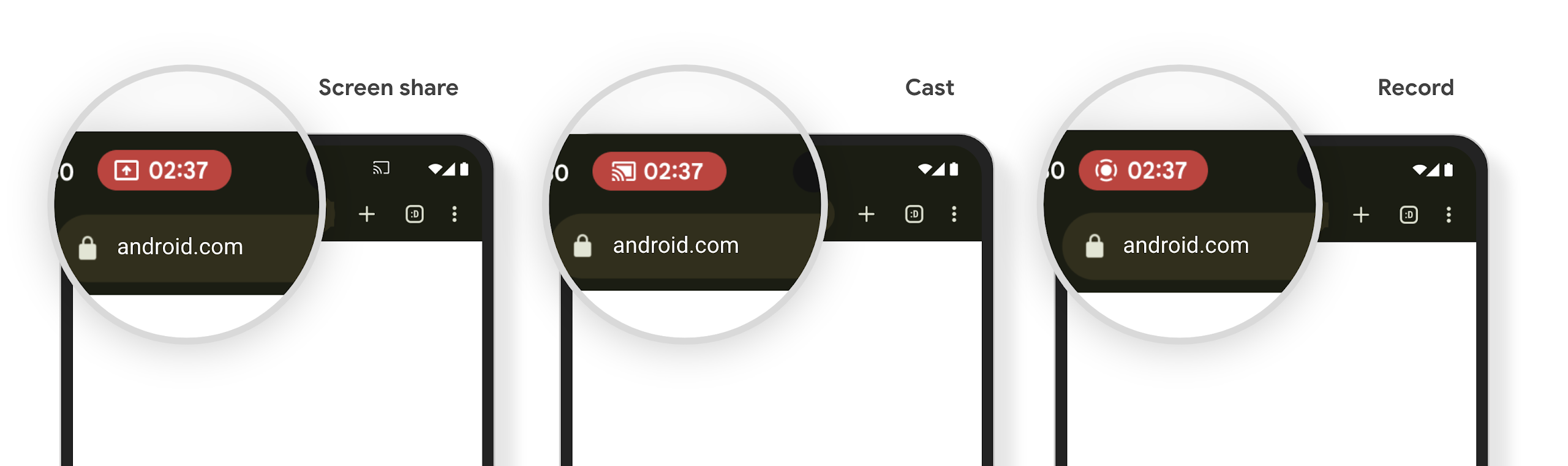
Another major change introduced in Android 15 is the option for users to choose between "A Single App" or "Entire Screen" when granting Media Projection permission. The “A Single App” option allows users to grant screenshot capture permission to only the specific app (e.g., Instagram or Facebook), while the “Entire Screen” option permits the app to capture all on-screen content, including notifications. In contrast, Android 14 only offered the ability to capture the entire screen, allowing the Screenomics app to access all content displayed on the device, and thus allowing for more comprehensive data capture. Currently, there is no method to detect whether the user selected "A Single App" or "Entire Screen" in Android 15, nor is there a way to enforce the "Entire Screen" option only.

Additionally, in Android 15, when screenshot capture is active, message previews and notification content are hidden. This feature is designed on a system level to protect user privacy by preventing sensitive information from being displayed during screen capture. While users still receive notifications, the content remains concealed. Developers cannot modify this behavior, as it is enforced by the operating system to ensure user privacy and security.
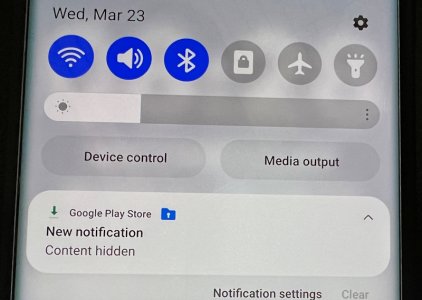
The combination of the status bar chip (which allows users to stop screen capture at any time), automatic stopping of capture when the screen is turned off, limited screen capture options, and inconvicience induced by hidden notification previews may reduce user compliance with study procedures by introducing interruptions and additional steps.
No other data collection modules or capabilities are impacted by the Android update.